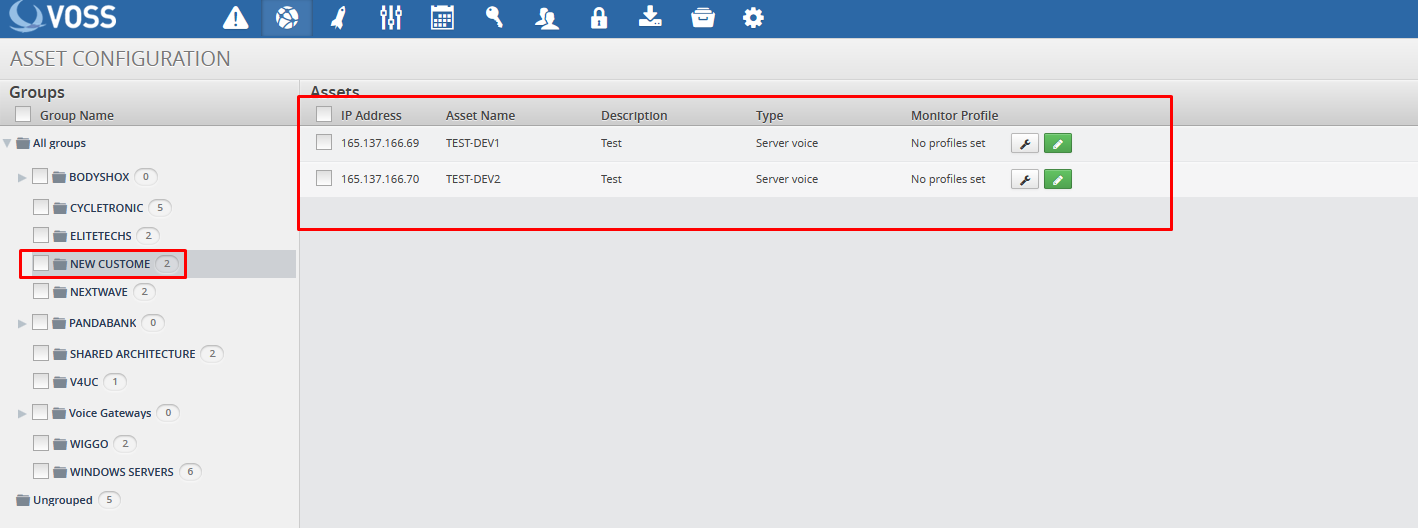
Add Customer Assets#
Log in to the Arbitrator as admin.
Click the toolbar Wrench icon to open the System Configuration GUI.
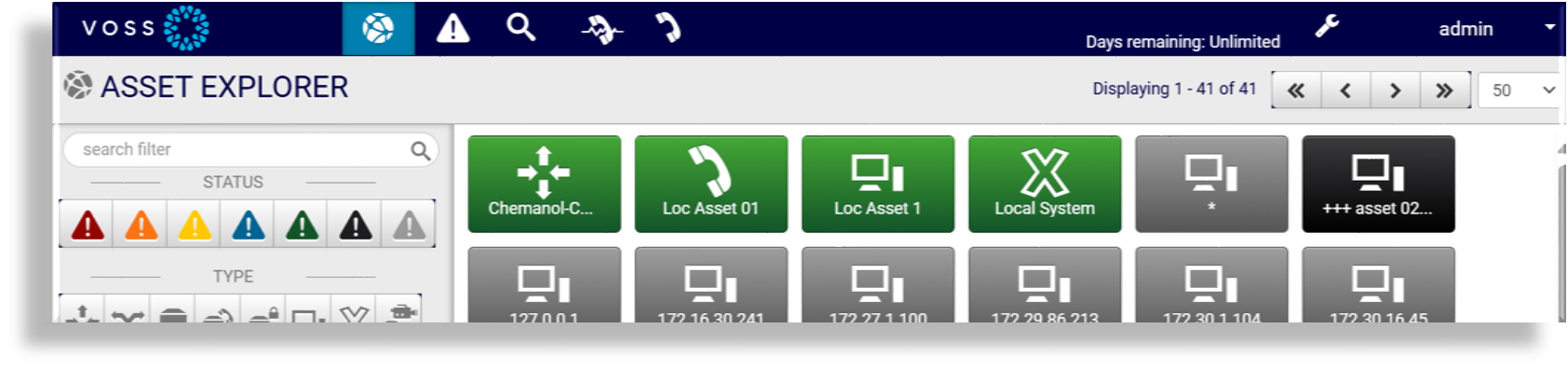
Click the toolbar Assets icon to open the Asset Configuration screen.
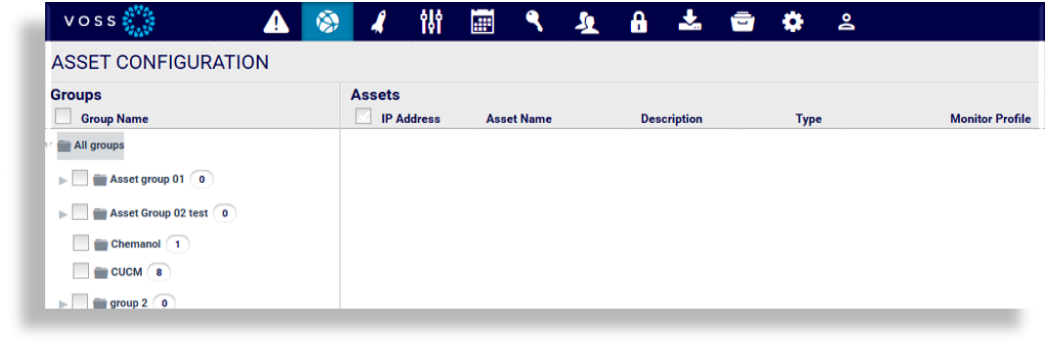
Under Groups, select All groups, then select the Plus (+) icon to add a new folder.
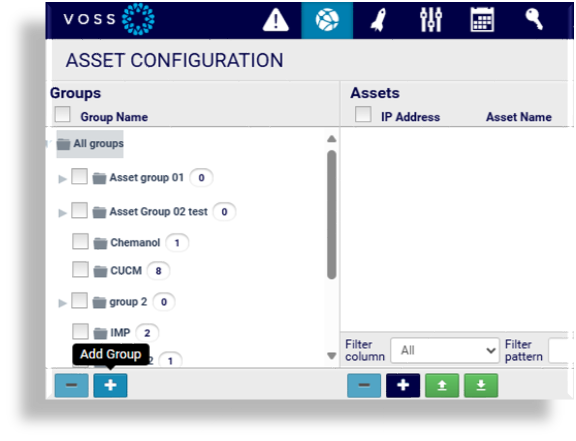
To rename this folder double click on it, rename it, then press <Enter>.
Select the new folder, then click the Plus (+) icon in the right pane to add an asset.
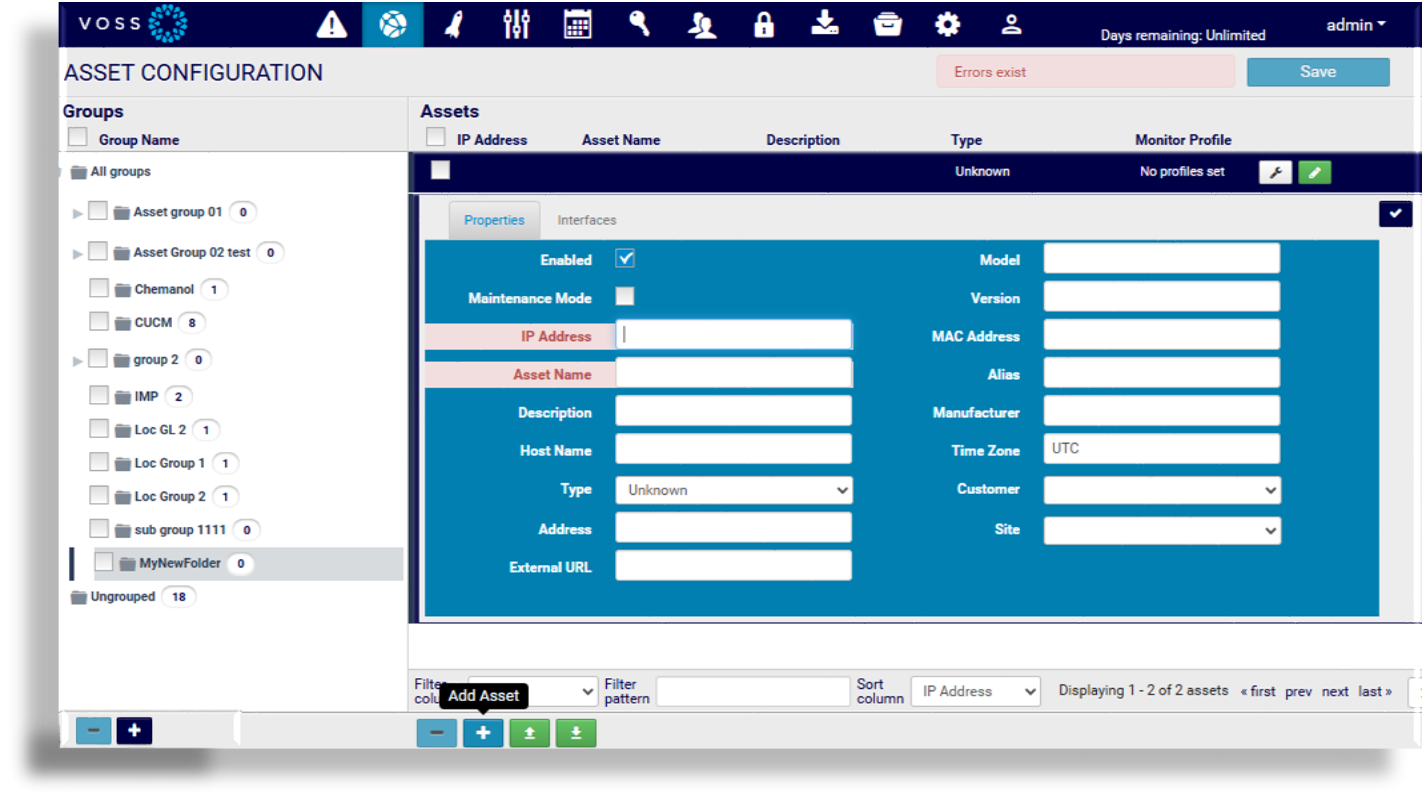
Fill out the IP address (mandatory).
Fill out the asset name (mandatory).
Fill out any other information you have into the relevant fields.
Click the Checkmark
 .
.Click Save.
Repeat these steps for all assets you wish to monitor. Alternatively, you can upload multiple assets using a CSV import.
CSV Import of Assets#
See also Export and Import an Asset.It is possible to upload multiple assets using a CSV file.
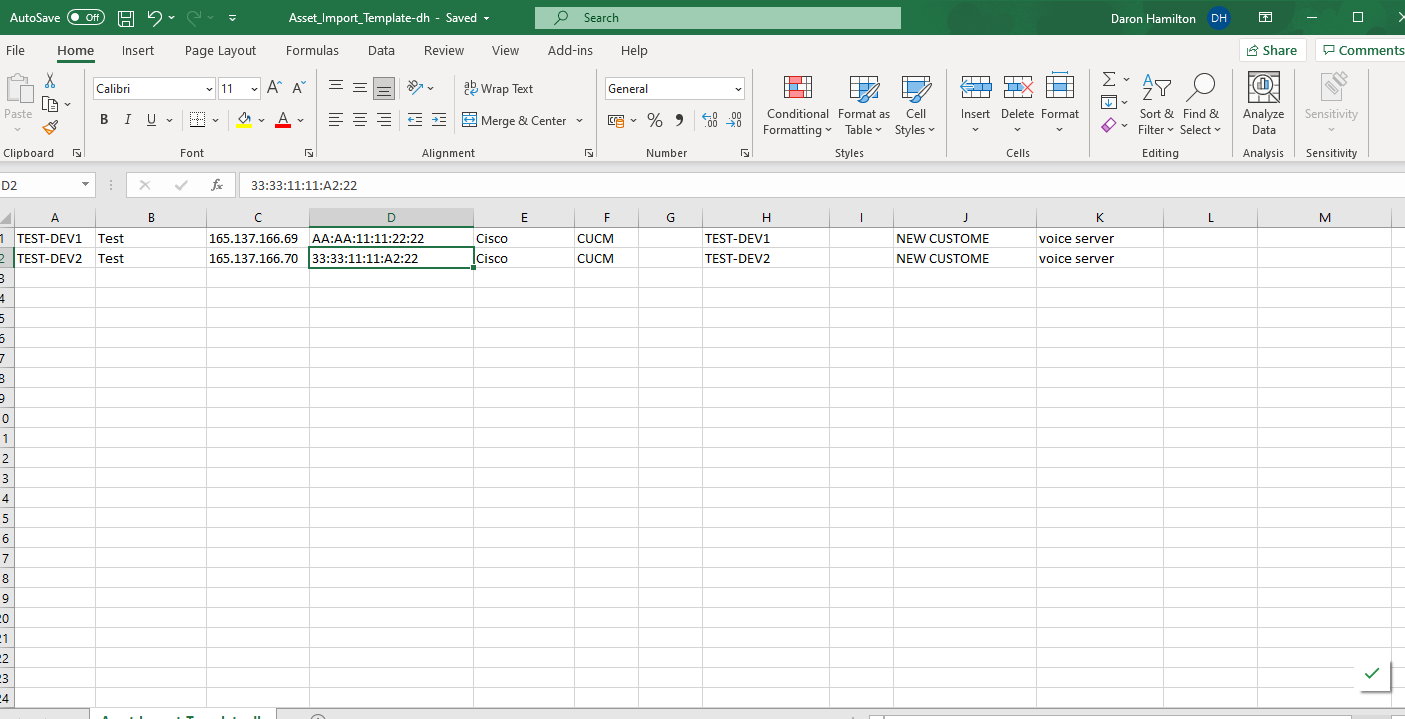
The CSV file is available in the Google Drive.

Above is an example.
The mandatory fields are:
AE_NAMEIP_ADDRESS
You can also use this CSV to create the asset and the Asset group and place the asset into the group.
Note
Remove the header row before you try to upload.
Mac Address field must be in the following format:
XX:XX:XX:XX:XX:XXRenderer – This selects the icon seen on the Arbitrator. The options are:
unknown
router
firewall
switch
voice switch
switch voice
server
voice server
server voice
workstation
phone
Import using CSV#
Log in to the Arbitrator with admin privileges.
Click the toolbar Wrench icon
 to open the System Configuration GUI.
Click the toolbar Assets icon
 to open the
Asset Configuration screen.
to open the
Asset Configuration screen.Click the Up-arrow
 to open the Import Assets dialog.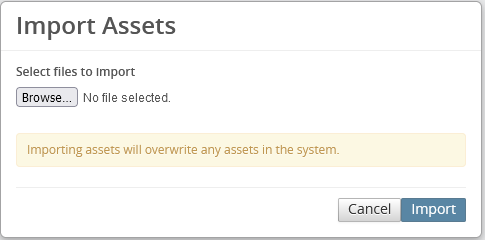
Browse to your CSV file.
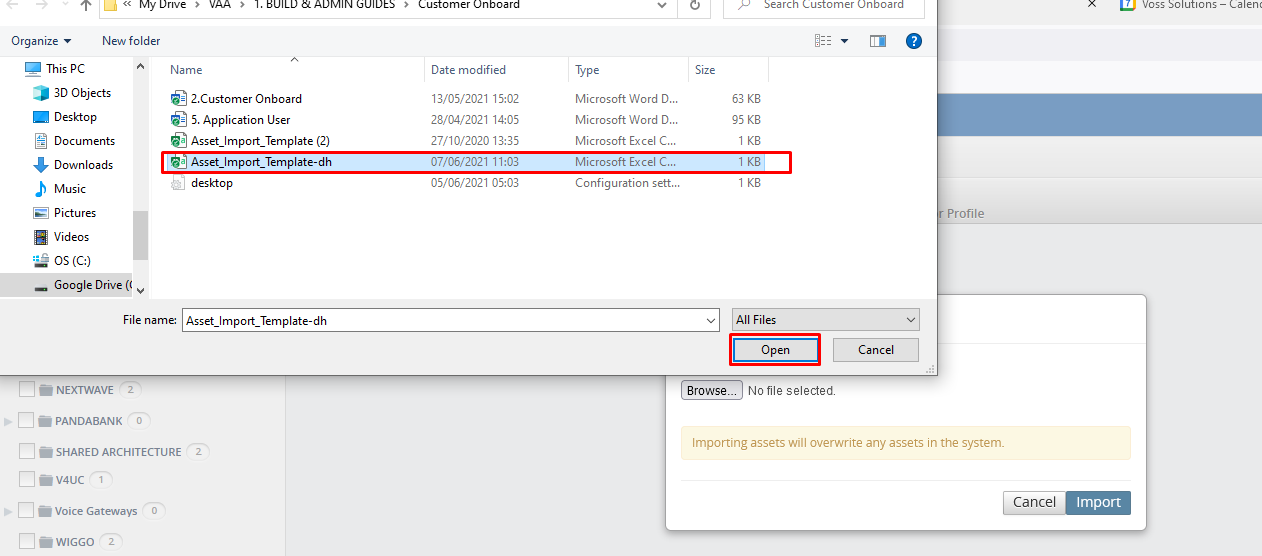
Click Open.
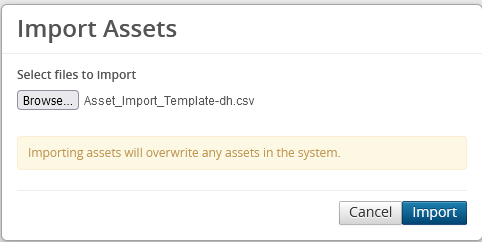
Click Import
Once the Import is complete, check the Asset Configuration screen to confirm your assets are present and in the correct location.