
Webex App users#
Overview#
You can add Webex App users into Automate in various ways:
Add Webex App user via the Users page. See Add Cisco Webex App user via Cisco Webex App menu
Webex Contact Center agents can be added if a user is assigned a Contact Center Premium Agent or Contact Center Standard Agent license. Refer to the Assigned Licenses entry below, particularly the Contact Center panel form that allows for Contact Center agent management.
Add Webex App user via Webex Teams Quick Add User.
Important
This method is recommended to add Webex App users on a Webex Control Hub with a Wholesale Customer service. See: Webex Application Access and Quick add groups.
Add Webex App user via the Users page. See Add a user
Add Webex App user via flow through provisioning. See Sync Webex App users with flow through provisioning
Add Webex App user via Quick Add User
Note
In Quick Add User, choose a Webex Teams User Template from the drop-down, or use the default user template (which is referenced in the Quick Add Groups associated with the user).
If you want customized values, clone the Webex Teams User Template via the Configuration Templates page, and edit as required.
Related topics
Provision Cisco Webex for an existing user (see Provisioning users with Cisco Webex)
View Cisco Webex App user#
To view a Cisco Webex App user:
Open the Webex App user’s settings. Two options:
View the list of users on the Users page (
relation/User). Select the relevant Webex Teams user to open their user management page. Here you can click the link (in the Services fieldset) to go to their Webex App user settings (relation/SparkUser).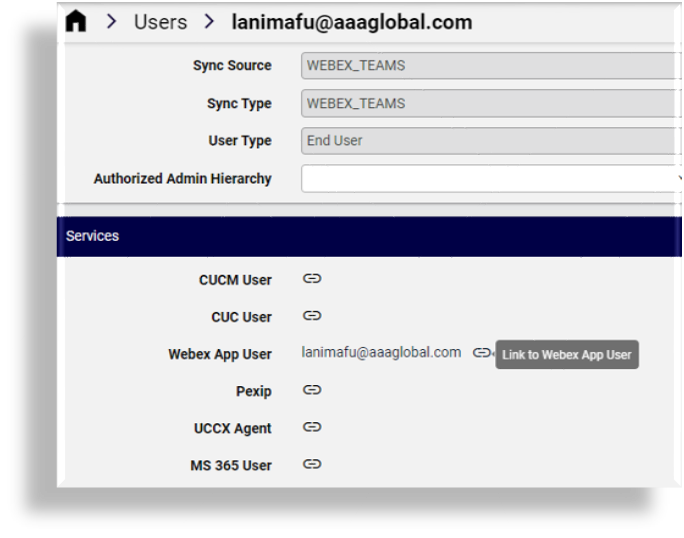
View the list of Webex App users on the Cisco Webex App Users page (
relation/SparkUser), then click on the relevant user to view their Webex App user settings.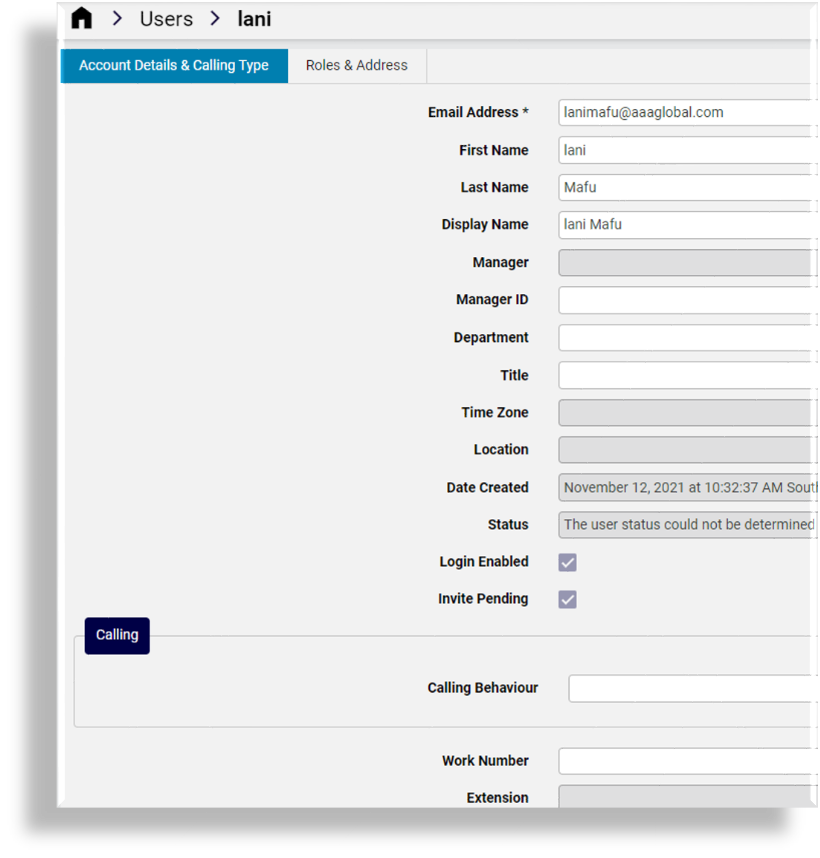
On the Webex App user’s detail page, view their account details and calling type, and their roles and addresses.
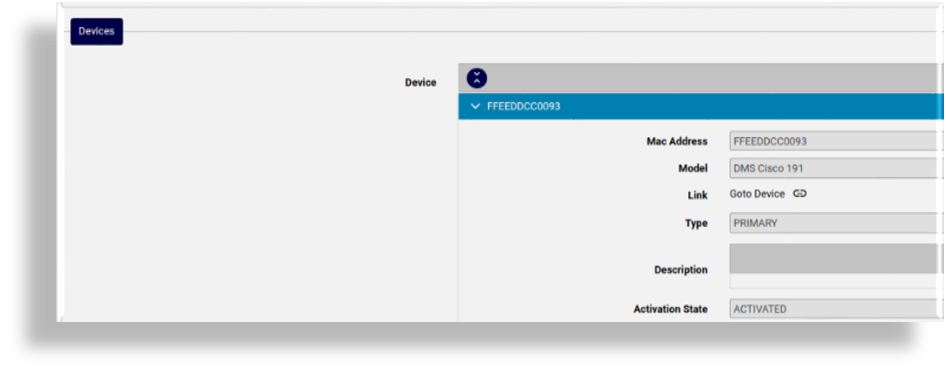
If the user is associated with a phone (device) you can click the link adjacent to the device to go to
relation/WebexDeviceto view and manage the device settings.Note
Multiple Jabber devices can be added to a Webex User as long as the user does not have an existing device of the same device type.
Add Cisco Webex App user via Cisco Webex App menu#
This procedure adds a new Cisco Webex user via the default Cisco Webex App menu in Automate.
Note
In this case:
You can choose phone numbers and assigned licenses. For phone number type, a Webex Calling license is required, and the Webex API (used for syncing with the Webex Control Hub) only supports add or update for phone number type Work.
The default option for Calling Behavior is
Calling in Webex App.By default, No administrator privileges is enabled.
Log in to the Admin Portal as a Provider, Reseller, Customer, or Site administrator.
Go to the Users page.
View existing Cisco Webex App users (including users with Webex Wholesale packages - synced, or added in Automate).
Click Add.
Choose the hierarchy where you want to add the Cisco Webex user.
Fill out fields on the Account Details & Calling Settings tab/panel:
(Mandatory). Select an email address. This value is used to match users when they’re moved during an overbuild.
Fill out a first name and last name.
(Mandatory) At Display Name, fill out a display name for this user, typically, name and surname.
At Manager ID, select the manager’s email address.
Location - the location selected from those specified on the Webex Control Hub - as synced in.
Calling Behavior - options are auto-populated, and display as one of the following:
Calling in Webex App
Calling in Webex App (UCM)
Note
Fields for device creation (Iphone, Android, CSF, Tablet) are displayed and checked by default.
Cisco Jabber App
Third Party App
Phone Numbers: The fields: Type (e.g. “Work”) and Number are available for each entry.
Extension: Webex Calling extension is available if a user has a Webex Calling license.
Assigned Licenses: selected from licenses available on the Cisco Webex service as synced in from the Webex Control Hub.
Depending on a user’s license, services such as Collaboration, Conferencing and Contact Center are available.
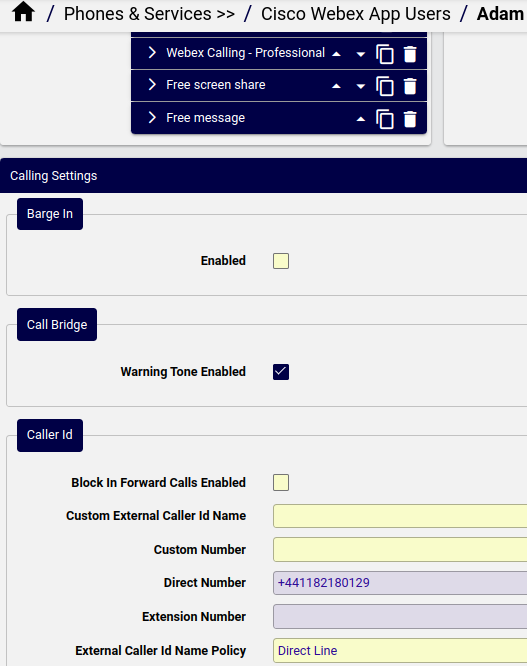
If Webex calling is enabled and a user is assigned a Webex Calling - Professional license, a Calling Settings panel on the form allows for the user management of Calling Settings (such as Barge In, Caller ID, Call Forward, Call Recording, Call Waiting, Intercept).
Note
If a user has Calling Settings available, these need to be removed and to be re-provisioned if it is necessary to move the user to another site. For details, see Move users.
If a user is assigned a Contact Center Premium Agent license, a Contact Center panel on the form allows for the Contact Center agent management:
User Profile ID, Site ID, Team IDs, Skill Profile ID: see: Webex Contact Center User Management
Agent Profile ID, Multimedia Profile ID: see: Webex Contact Center Desktop Experience
Note
For Agent Profile ID selection, all global and only desktop profiles assigned to the same contact center site as the user are available.
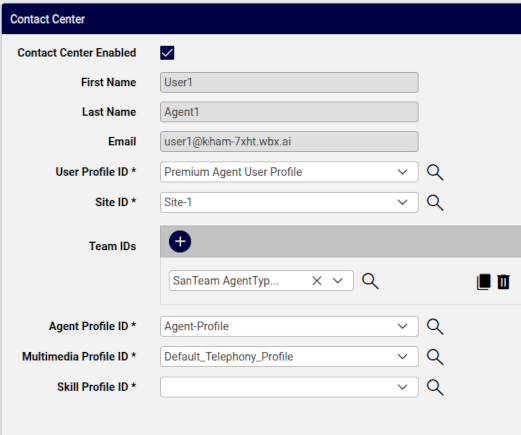
On the Roles tab/panel, select relevant roles:
No administrator privileges
Default
Full administrator privileges
Access to all portal features, including:
Assign roles
Company policy and templates
Device management
Licenses and upgrades
Read-only administrator privileges
Read-only access to content available to a full privilege admin
Support administrator privileges
Access to user information and support logs
User and Device Administrator
.
Device Administrator
.
The Wholesale Package tab/panel is shown only if the Webex for Wholesale service is available - see: Webex Application Access. Available packages in the service and their status (e.g.
provisioned) are shown and can be managed here.In accordance with the package selection, the user’s Assigned Licenses - as available on the Webex for Wholesale service - are then also updated when the user is provisioned.
Note that when modifying a Webex user and UCM Calling Licensing is deleted and the Work Phone number is also set to empty, then the number is removed from the user. In the case where the Work Phone number is not set to empty, it remains assigned to the user.
Click Save to add the Cisco Webex App user.
Note
You can view the details for the Cisco Webex App user you added in the summary list view, which also displays:
On-Prem UCM Calling Service (True/False) - Defines whether calling services are on-premise or cloud. The On-Prem UCM Calling license is removed if the Cisco Webex Calling (with UCM) is removed from the user.
Calling Behavior (determines license use) - options are:
Calling in Webex App - Allows calling via the Webex app using native Webex calling
Calling in Webex App (Unified CM) - Allows calling via the Webex app using a registration to UCM
Cisco Jabber App - Allows calling using a Cisco Jabber client registered to UCM
Third Party App - Allows calling using a third party app registered to UCM
Use Organization’s Domain (True/False) - When enabled, the Cisco Webex organization domain is used for calling in Cisco Webex (Unified CM)
UC Manager Profile - May be used to identify the required UCM cluster when a calling behavior using UCM is selected. If the default UCM domain is selected, this is not required.
User Type - “Person”, “Bot” or “App User (Guest User)”.
Status - the current Cisco Webex App user status: for example: active/inactive, in a call/meeting/presenting, and so on. If unknown, then displayed as: “The user status could not be determined”.
Delete a Cisco Webex App user#
This procedure deletes an existing Cisco Webex App user (synced, or added via Automate).
Log in to the Admin Portal as a Provider, Reseller, Customer, or Site administrator.
Set the hierarchy to the Customer or Site level.
Go to the Users page.
Choose the Webex users you wish to delete (one or more).
Click Delete.
Click Yes to confirm.
Note
When deleting a user with Cisco Webex App, the internal number inventory (INI) is updated as the number status is changed to Available, and the description, if any, is removed.
Provisioning users with Cisco Webex#
This section describes how to provision Cisco Webex for a user, either via the Users list view, or via Quick Add User.
Related topics
Provision Cisco Webex via User list view#
This procedure provisions a user with Cisco Webex, via the User list view.
Prerequisite:
The users entitlement profile must have Cisco Webex enabled (Webex App checkbox must be selected).
Unless Cisco Webex service assigned is Message only, new users must have an input line specified, and existing users must have either a primary extension, or an input line must be specified.
To provision a user with Webex:
In the Admin Portal, go to Users.
From the Users list, click on a user you wish to provision with Cisco Webex.
On the user configuration screen, select the Webex App panel (or if selected as display option, the tab).
In the Webex App User field, expand the Webex App User configuration fields.
Note
The following Invite Pending checkbox is read-only, indicating the user’s status (whether their Webex account is active).
Options in the Manager ID and Location fields depend on the Cisco Webex Server to which the Cisco Webex Service is synced.
The Calling Behavior field can be “Calling in Webex App”, “Calling in Webex App (Unified CM)”, “Cisco Jabber app” or “Third-Party app”.
In the Assigned License section, the available licenses depend on the Cisco Webex Server to which the Cisco Webex Service is synced.
In the Roles section, select the relevant check boxes to configure the required roles:
No administrator privileges
.
Full administrator privileges
Access to all of Portal features, including:
Assign roles
Company policy and templates
Device management licenses and upgrades
Read-only administrator privileges
View only access to privileges available to a full administrator.
Support Administrator
Access to user information and support logs.
User and Device Administrator
.
Device Administrator
.
Click OK. Cisco Webex is provisioned for the user.
To verify, ensure the Webex App column in the Users list view displays the text, Enabled.
Provision Cisco Webex via Quick Add User#
This procedure enables Cisco Webex for a user via Quick Add User.
Prerequisite:
The user’s entitlement profile must have Cisco Webex enabled (Webex App checkbox must be selected).
Unless Cisco Webex service assigned is Message only, new users must have an input line specified, and existing users must have either a primary extension, or an input line must be specified.
See Add Cisco Webex App user via Cisco Webex App menu and Add Webex App service using Quick Add User
Go to Quick Add User.
From the Username drop-down list, choose the name of the user to be provisioned with Cisco Webex.
Select the Webex App checkbox to enable Cisco Webex for the user.
From the Webex Teams User Template drop-down list, choose the template you want to assign to the user.
Click Save. Cisco Webex is provisioned for the user.
To verify that Cisco Webex is enabled for the user, ensure the Webex App column in the Users list view displays the text, Enabled.
Note
When Cisco Webex Calling (with UCM) is removed from a Webex User, the ‘On-Prem UCM Calling’ license is removed from the Webex User.
Sync Webex App users with flow through provisioning#
When using sync with flow through provisioning for Cisco Webex users, you need to configure several settings in Automate (including flow through provisioning criteria) before the initial sync from the Webex Control Hub. See: Configure flow through provisioning.
Enable flow through provisioning in the Global Settings for a hierarchy (see: Global settings)
Configure Webex settings matching the user’s location in the Site Defaults (see: Site defaults) so that Move Filter Criteria are
webexUserModelFilterCriteria.These criteria are used as a part of a user profile.
The workflow
AddSubscriberFromProfileat site uses CFT:Webex_FlowThroughProvisioning_SubscriberFromProfile
This allows Automate to apply the correct configuration, licenses, and services to imported users, and to move users to sites.
Once you run the sync, users are imported, provisioned, licensed, and moved to the correct synced in sites, as users - in accordance with configured Webex App user model filter criteria and user profile.
Important
Webex Control Hub users who have been assigned Webex Calling Professional licenses and have a Location assigned, this location will not be overwritten by any site setting configured in the Automate user move component (Model Filter Criteria) of Flow Through Provisioning.
The flowchart sets out the sync with flow through of Cisco Webex users and services.
Related topics