
Use the Action search to navigate Automate#
Overview#
Automate’s toolbar Action search allows you to navigate the GUI to go to pages in the user interface.
Note
Automate 25.1 replaced the default menu layout with a series of dashboards and menus to consolidate Automate functionality based on a role-based way of working for different administrators, including Provider admin, Customer admin, Site admin.
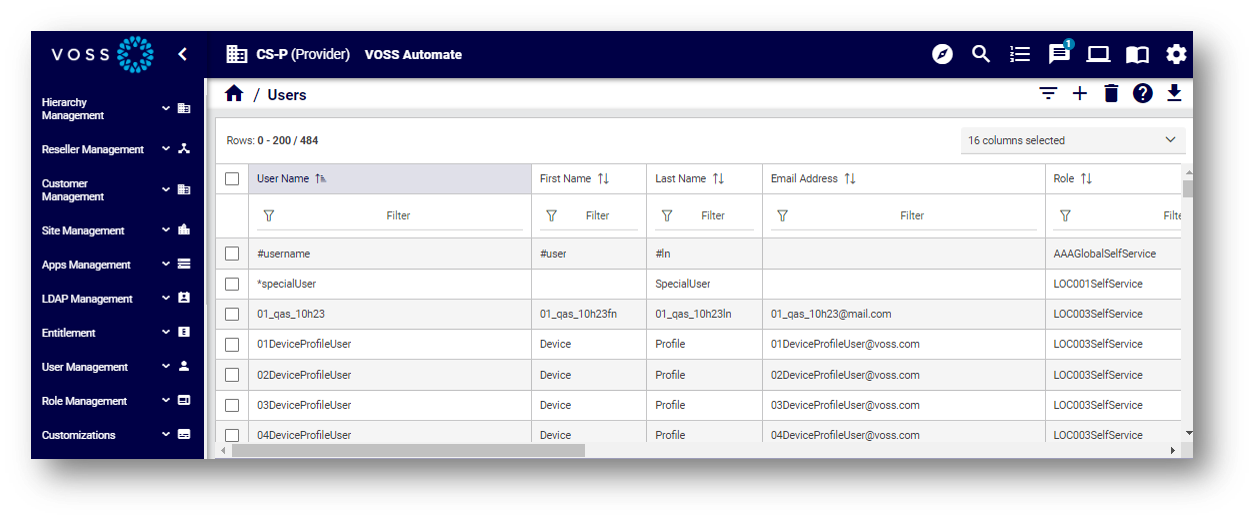
The Action search is the default search mode in Automate. Fill out the name of the page you’re looking for, then press Enter or click the Search icon. Click on the relevant search result to open the page.
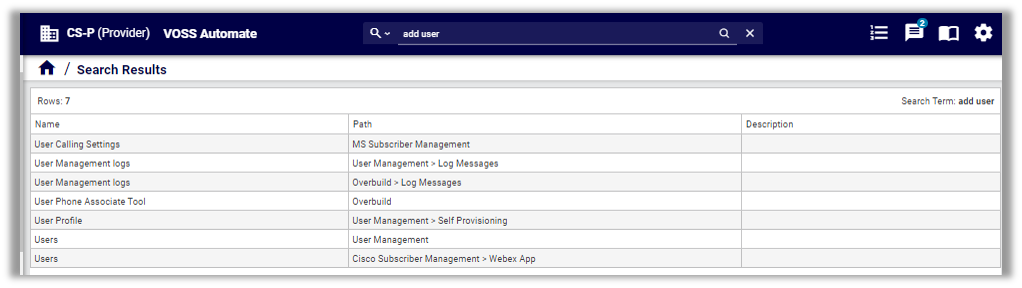
Menu entry results display in the following Path format: xx > xx
Dashboard results display in the following Path format: Dashboard: yyy
Verbs in the search phrase return results when matching the same word in a menu or dashboard (for your role).
Since the Action search uses title text in menus, Dashboards, and actions, a best practice when creating these is to ensure they contain useful text for finding actions.
Important
Plural keywords may not return all relevant results. If you don’t see the results you expect, change the keyword to singular, for example, phone instead of phones, or add subscriber, instead of add subscribers.
Using generic terms, such as subscriber or phone, returns all items relating to this keyword.
Avoid search phrases that include the, a or an. For example, use add user instead of add a user.
Search phrases that refer to a device, such as Cisco UCM (Cisco Unified Communications Manager), returns all items (including device models) that have the device name in the label or description. Additionally, the phrase add device returns a list of results where the label starts with device, where the role allows the add operation, and (in this case), labels, descriptions, or models containing the full string, add device.
For best results (depending on the permissions you have on the model types), use the following verbs in search phrases:
create, add
update, edit, modify, change
delete, remove
Search criteria supports abbreviations, model type keywords (such as view, relation, model), and matches for the first character of words in a string. For example, QAS returns QAS - MS Teams, as well as Quick Add SIP Gateway.
Note
Including numerical digits in the search criteria only returns menus with digits in the menu or dashboard name. For example, search criteria including the digits 1, 6, or 4 returns menus with these digits in their name, such as E164 Inventory (by default, a sub-menu in the Number Management menu).

Best practices for meaningful Action search results#
Administrators should align naming conventions and the setup of items for user navigation with terms that are familiar to users. For example:
Adjust the names of menus, dashboards, tasks, and quick actions if these prove to be unintuitive.
Configure relevant dashboards for quick actions, based on user roles.
Use the Action search to quickly find actions that aren’t available on dashboards and menus.
Related topics