
Ctrl+K
VOSS Automate 25.1 - Home
  • Automate
  • Release Notes for VOSS Automate 25.1
  • Compatibility Matrix
  • Core Feature Guide
    • What’s New
    • Introduction
      • Welcome to Automate
      • Manage your Automate product license
      • Log in
      • Role-based dashboards and menus
      • Guide to the Admin Portal user interface
      • Manage items
      • Working with lists
      • Use the Action search to navigate Automate
      • Search in Automate
      • Searchable fields
      • Case-insensitive search fields
      • Wingman
    • Quick Start Guides
      • Customer Onboarding Quick Start Guide (Multiple Vendors)
      • Microsoft Quick Start Guide for Automate
    • Hierarchy Management
      • Introduction to Hierarchies
      • Navigate the Hierarchy
      • View the Hierarchy
      • Create a Provider
      • Create a Reseller
      • Create Intermediate Node
      • Delete a Hierarchy
      • Delete Issues and Purges
      • Localization Language
    • Customer Management
      • Customers
      • Network Device Lists (NDLs)
      • UCM Group Selection
      • CUCM Group Counts
      • Countries
      • Introduction to EMCC
      • EMCC Groups
      • EMCC Route Patterns
      • EMCC Templates
    • Site Management
      • Manage sites
      • Site Defaults Doc templates
      • Site defaults
      • Associate or Disassociate SIP Local Gateway to a Site
    • Apps Management
      • Introduction to Insights monitoring
      • Arbitrators
      • Onboard Assets
      • Offboard Assets
      • Add a SMTP server
      • Introduction to VOSS Phone Server
      • Managing VOSS Phone Servers
      • Add phone types
      • Introduction to conferencing
      • Conference workflows
      • Add a Pexip Server
      • AudioCodes Devices
    • Cisco Apps Management
      • Cisco UCM configuration
      • Cisco UCM servers
      • Headset Enablement
      • Add Cisco UCM group
      • Clone an instance of a Cisco UCM device model
      • Multi-cluster or single cluster configurations
      • Date time groups
      • Time periods
      • Time schedules
      • Locations
      • Configure Regions
      • Device pools
      • SIP profiles
      • SIP trunk security profiles
      • SIP trunks
      • Route groups
      • Route lists
      • Cisco UCM translation patterns
      • Calling party transformation patterns
      • Configure called party transformation patterns
      • Cisco UCM route patterns
      • Route partitions
      • Calling search spaces
      • SIP route patterns
      • CTI route points
      • Softkey Templates
      • Call Park Management
      • Media Resources
      • Add Devices to Application User
      • Add application users to device
      • IP Phone Services
      • Cisco UCM Music on Hold (MOH) file management
      • Introduction to Forced Authorization Codes (FAC)
      • Using Device Models to Manage FAC
      • Using Automate to manage FAC
      • Customize Authorization Levels
      • Customize Help
      • Servers (CUC)
      • Schedules
      • Voice mail services
      • Associate or disassociate voice mail services to a customer
      • Pilot numbers
      • Associate or disassociate pilot number and site
      • Call Handler
      • Add greeting files
      • Call Handler (Auto Attendant) Schedule
      • Language filters
      • Timezone Filters
      • Configure Cisco Emergency Responder (CER)
      • Associate CER with Customers
      • View Associated Clusters on CER Servers
      • Configure Cisco Unified Contact Center Express (UCCX) Server
      • Introduction to Contact Center Service
      • Configure Contact Center Server Using CUCM
      • Built-in-bridge
      • Add a Contact Center server
      • Edit or delete Contact Center servers
      • Add a Contact Center service
      • Edit or delete Contact Center services
      • Configure CTI Port
      • Tag CTI Port as Contact Center Agent Line
      • Webex servers
      • IOS Device Management
      • Command Builders
      • Local Break Out (LBO) and Analog Gateway Configuration and Generated Events
      • Local Break Out and Analog Gateway Events, IOS Commands, and Variables
      • MGCP Analog Gateway Events and IOS Commands
      • Translation Rule Numbering
      • Add an IOS Device
      • Analog gateways
      • Add a port to an analog gateway
      • SIP Gateway Port
      • Quick Add SIP Gateway
      • SIP Local Gateway
      • IOS Gateway Manual Configuration
      • Configure Intelligent Proximity for Mobile Voice in Automate
      • Introduction to UC Prep
      • UCPrep Profiles
      • UCPrep Profile Push
      • Introduction to load balancing
      • Load balancing using site default device pool
      • Associate a UCM group to a device pool
    • Microsoft Apps Management
      • Microsoft Quick Start Guide for Automate
      • Introduction to Microsoft UC integration
      • Microsoft UC Application Setup
      • Shared central app registration
      • Run PowerShell proxy server setup script
      • Test the PowerShell Proxy Connection to the Tenant
      • Sync in Azure Users
      • Sync Microsoft users to sites
      • Configure Microsoft tenant connection parameters
      • Create MS Teams Service Account on Microsoft Cloud
      • Microsoft License Management and Alerting
    • LDAP Management
      • LDAP Server
      • LDAP user sync
      • LDAP Schedule
      • LDAP Custom Role Mappings
      • LDAP Authentication in Automate
      • Configure LDAP authentication-only (standalone)
      • View and update LDAP authentication users
      • Run CUCM LDAP directory sync
      • Write-back to Active Directory LDAP
    • Entitlement
      • Introduction to entitlement
      • Entitlement enforcement
      • Add a Device Type
      • Add device group
      • Entitlement catalogs
      • Entitlement profiles
    • User Management
      • Introduction to user management
      • View users
      • Add admin user
      • Update a user
      • End-user provisioning workflow
      • User provisioning use cases
      • View a user’s provisioning status
      • User login options by auth method and server auth scope
      • User authentication
      • Credential policies
      • Standard users and login
      • LDAP users and login
      • SSO users and login
      • Multi vendor users
      • Enable multi vendor users
      • Role-based access for multi vendor users
      • Introduction to Cisco-Microsoft hybrid
      • Hybrid Cisco-Microsoft management
      • Hybrid service definitions
      • Move user & services
      • Introduction to user syncs
      • User sync source
      • User field mapping
      • Authentication and passwords in user syncs
      • Sync or purge LDAP users
      • Re-provision synced LDAP users
      • Sync CUCM users, lines, and phones
      • LDAP sync actions
      • Purge a CUCM user from Automate only
      • Create a filter to move users
      • Introduction to Self Provisioning
      • Enable self-provisioning
      • Bottom-up user management
      • Top-Down User Management
      • CUCM Configuration for Self-Provisioning
      • Site configuration for self-provisioning
      • Generate a User’s Primary Line
      • Specify the primary line per user
      • Add a self-provisioning universal device template
      • Add a self-provisioning universal line template
      • Add a self-provisioning user profile
      • Set a default user profile for a site
      • Add self-provisioning line mask
      • Push users to Cisco UCM
      • Automatically move users synced from CUCM
      • Move users
      • Site-to-site user move Transaction Log errors
      • Convert user type CUCM-LDAP to CUCM Local
      • Manage duplicate usernames
      • Manage local administrators and operators
      • Session Timeout Rules
      • Timeout Limit Notifications
      • Manage Passwords
      • Passwords and manually added users
      • Force a user to change their password
      • Force administrators to change their password
      • Change your own password
      • Unlock a locked user account
      • Unlock a locked admin account
      • Manually disable a user account
      • Manually disable an admin account
      • Introduction to Self-service
      • Self-service and User Configuration
      • Create a Self-service link
    • Role Management
      • Role-based access
      • Authorized Admin Hierarchy
      • User roles
      • Add and Edit Roles
      • Clone a Role
      • Create a Service Assurance Only Role
      • Create a Fulfillment Only Role
      • Create a Custom Self-service Role
      • Create a Business Admin Role
      • Delete Unused Roles
      • Introduction to Themes
      • Manage themes
      • Theme element color references for the Admin Portal
      • Setting the Default Theme
      • Login banner
      • Menu layouts
      • Menu diff tool
      • Fixed and Configurable Filters in Menus
      • Introduction to Automate Dashboards
      • Manage dashboards and widgets
      • Chart widgets
      • Counter widgets
      • Links widgets
      • Table widgets
      • Text Widgets
      • Dashboards for a Business Admin Role
      • Dashboard Reference
      • Introduction to access profiles
      • Access Profile Permissions and Operations
      • Customized Credential Policy
      • Assign a Credential Policy to a User
      • Assign a Credential Policy to an Administrator
      • Support for Privacy and Security Notices
      • Privacy policy menu items
      • Manage privacy policy menu items
      • Automate cookie policy
    • Customizations
      • Introduction to Customizations
      • Global settings
      • User profiles
      • Model Filter Criteria
      • Field display policies
      • Configuration templates
      • Configuration mapping for phones, device profiles, and lines
      • Drop-down filters
      • Line delete preferences
      • Email
      • Quick add groups
    • Flow Through Provisioning Configuration
      • Configure flow through provisioning
    • Cisco Dial Plan Management
      • Introduction to Cisco HCS dial plan
      • Dial plan roles and privileges
      • HCS dial plan macros in Automate
      • Customer dial plan
      • Site dial plans
      • Line classes of service
      • Short codes
      • Directory number routing
    • MS Teams Dial Plan Management
      • Introduction to Microsoft Teams Dialplan Management
      • Configure Microsoft tenant dialplan
      • MS Numbers
    • MS Teams Emergency Management
      • Introduction to Microsoft Teams emergency management
      • MS Teams emergency locations
      • MS Teams emergency location networks
    • MS Teams Policies
      • Introduction to Microsoft Teams policies
    • Number Management
      • Introduction to number management in Automate
      • AudioCodes Device Number Integration
      • Number inventory
      • View number details and usage
      • Number status and usage
      • Number range management
      • Number cooling
      • Number reservation
      • Reserve numbers for a user
      • Audit the number inventory
      • Number inventory alerting
      • Manage number filters
      • Introduction to E164 inventory management
      • E164 numbers in the number inventory
      • Add an inventory of E164 numbers
      • View an E164 inventory and delete E164 numbers
      • E164 associations ( N to N DN )
      • E164 associations ( N to 1 DN )
      • Migrate translation patterns for E164 to internal number associations
    • Unity SIP Integration
      • Introduction to Unity SIP integration
      • Configure the Unity SIP Integration menu layout
      • Access profile changes
      • Unity SIP Integration
      • Integrate Unity-Call Manager
      • Dial Plan Profile
      • Remove Integrate Unity-CallManager
      • Add or delete a Unity Tenant
      • Integration Log
    • Cisco User Management
      • Cisco Quick User
      • Onboard user
      • Cisco UCM users
      • Move user
      • Phones
      • Headsets
      • Phone Status Export
      • Smart add phone
      • Line Search
      • Lines
      • Intercom Lines
      • Agent Lines
      • Voicemail
      • Extension mobility
      • Single number reach
      • Add controlled device to Cisco user
      • Move Phones
      • Moving phones from site to site
      • Replace phone
      • Reset-Restart Site Phones
      • EM Login/Logout
      • VOSS phones
      • Class of Service (User)
      • Reset UC Passwords
      • Pexip Conference Users
      • Reassign user services
      • PLAR (Hotdial)
      • Hunt groups
      • Call Pickup Groups
      • Provision the extension mobility service
      • Provision the Voice Service
      • Provision the Voicemail Service
      • Provision the Pexip Conference service
      • Provision the Jabber or dual mode device service
      • Contact Center
    • Cisco Webex App
      • Introduction to Cisco Webex App
      • Webex Application Access
      • Webex location node mapping
      • Webex App licenses
      • Webex bulk actions
      • Webex locations
      • Workspaces
      • Webex App users
      • Webex Quick Add User
      • Bulk update Webex App users
      • Webex devices
      • Workspace call settings
      • Workspace locations
      • Webex schedules
      • Quick Add Device
      • Replace device
      • Reset devices to baseline
      • Device configuration profiles
      • Webex App manual steps
      • Test device configuration profile rendering
      • Webex App hunt groups
      • Webex App call park
      • Webex App auto attendants
      • Webex App call pickup
    • Cisco Webex Contact Center
      • Introduction to Webex Contact Center
      • Webex Contact Center sync
      • Webex Contact Center customer experience
      • Webex Contact Center User Management
      • Webex Contact Center Desktop Experience
      • Webex Contact Center Advanced
    • Microsoft User Management
      • Introduction to Microsoft onboarding and offboarding
      • Configure Automate for Microsoft Services
      • Microsoft Quick User
      • Microsoft users
      • Move Microsoft user and services
      • MS Teams CSOL Users
      • User Calling Settings
      • User voice mail settings
      • Offboard user (Microsoft)
      • Microsoft Licenses
      • External Access for MS Teams
      • Groups
      • Teams
      • Manage group membership
      • MS Teams Templates
      • Resource Accounts
      • Call Queues
      • Auto attendants
      • Holidays
      • Microsoft Exchange
      • User staging
      • MS Blocked Calling Numbers
    • MS Operator Connect Management
      • Microsoft Operator Connect management in Automate
    • Overbuild
      • Introduction to Overbuild
      • Overbuild for Cisco
      • Overbuild for Microsoft
      • Run Overbuild
      • Overview Tool
      • Run Dial Plan Overbuild
      • User phone associate tool
      • Overbuild Analog Gateway
      • Device Models
      • Locate a user associated with a CUC device model
      • Filter calling search spaces and assign a class of service
    • Administration Tools
      • Introduction to Import
      • Bulk load
      • Data export
      • Bulk export of model data
      • Bulk load template export
      • Bulk load sheets
      • Sample bulk loaders
      • Bulk load template sheet layout
      • Export data sheet layout
      • Bulk load sheet macro evaluation
      • Bulk load transactions
      • Alerts
      • Alert Types and Alert Field Reference
      • Transaction logging and audit
      • View a Transaction
      • Transaction log levels
      • Transaction Details
      • Filter Transactions
      • Filter Sub-Transactions and Logs
      • Transaction Behavior
      • Transaction Priority
      • Transaction Log Example
      • Device data sync errors in transactions
      • Export a Transaction
      • Northbound Notification
      • Notification Format
      • NBN Transaction Processing
      • Northbound Notification Workflow
      • Configure Northbound Notification Destination
      • Configure Northbound Notification Event Attributes
      • Configure Northbound Notification event
      • Scheduling
      • Add or edit a schedule
      • Deactivate and Activate Schedules
      • File management
      • Create Line Reports for a Site
      • View Line Reports
      • Audit Template Customizations
      • View Template Customization Audit Reports
      • Example Template Customization Audit Reports
      • Settings
      • Set up a Web Proxy
      • Manage certificates for SSO
      • Generate a certificate for application registration
    • Single Sign On (SSO)
      • Single Sign On (SSO) Overview
      • SSO SP Settings
      • SSO identity provider
      • SAML Elements in Assertions
    • Data Sync
      • Introduction to data sync
      • Default Cache Control Policy
      • Data sync types
      • Full Sync
      • Enable a Scheduled Data Sync
      • Manually run the default data sync
      • Controlling a Data Sync with a Model Type List
      • Create a Targeted Model Type List
      • Model instance filters
      • Allowlists and denylists
      • View List of Device Models
      • Create a Custom Data Sync
      • Cisco UCM change notification alerts
      • Introduction to Change Notification Sync
      • Enabling / Disabling CNF Syncs for a CUCM cluster
      • Automate change notification
      • Troubleshooting Change Notification (CNF)
      • Shared line across sites
      • Shared line across sites example
      • Shared line across sites example diagram
      • Inventory site
      • Inventory site diagram
      • Dial plan type for shared line across sites
      • Class of service for shared line across sites
      • Call forward considerations for shared line across sites
      • Phone, user, and Quick Add User for shared line across sites
      • Hunt groups and call pickup groups for shared line across sites
      • Site short codes
      • Handling voicemail to secondary shared lines
      • Configure shared line across sites
    • Self-service Administration
      • Introduction to Self-service Administration
      • Self-service Feature Display Policy
      • Self-service Feature Display Policy Field Reference
      • End User Access and Authentication
      • Themes and Branding
      • Self-service Login Banner
      • Personal Phones (Remote Destinations)
      • Dual Mode Phones - Mobile ID
      • Voicemail for Self-service
      • Links Page
    • Advanced Tools for System Administrators
      • Add Custom Variables
      • Create Model Report
      • Manage Model Reports
    • Appendix: Optional Features
      • Dial Plan Management Tool
      • Cisco Custom Dial Plans
      • Dial Plan Maintenance
      • Multi-Cluster Dial Plan Maintenance
      • Dial Plan Viewer
      • Dial Plan Input Data
      • Dial Plans
      • Cisco dial plan models
      • Microsoft Dial Plan Models
      • Dial Plan Model Bulk Loader
      • Dial Plan Log
      • Move Number Inventory Instances
      • Introduction to Phone-Based Registration (PBR)
      • Add phone-based registration menus and access profile
      • Create Restricted API Role and Admin User
      • Install Phone-based Registration (PBR) Web Service
      • Add PBR config records
      • Configure Cisco UCM for AutoRegistration and PBR
      • Register a phone for phone-based provisioning
      • Introduction to Phone Services
      • Configure phone services
      • Manage Phone Services
      • Call Redirection Routing Plan for Disaster Recovery
    • Appendix: Glossary
      • Glossary
  • Self-service Guide
    • Purpose
    • Audience
    • Conventions
    • Accessing Self-service
    • First Login and Password Expiry or Reset
    • Accessing Minimal Mode
    • Manage Your Self-service
    • Configure Your Password Reset Questions
    • Reset Your Password
    • User Interface
    • Available Features and Services
    • Session Timeout
    • Buttons and Icons
    • Common Tasks
    • Home
    • My Information
    • Change Your User Language
    • Manage Your Password and PIN
    • Change Your Password
    • Password Hints and Rules
    • Change Your PIN
    • Access Webex
    • Phones
    • Manage a Phone
    • Add Your Own Smart Device
    • Edit a Smart Device
    • Bulk Modify Your Company Phones
    • Your Personal Phone Management
    • Add a Personal Phone
    • Edit a Personal Phone
    • Delete a Personal Phone
    • Bulk Modify Your Personal Phones
    • Voicemail Settings
    • Create your own Voicemail Account
    • Change your Voicemail Settings
    • Alternate Numbers and Notification Devices
    • Manage Alternate Numbers and Notification Devices
    • Caller Input
    • Manage Caller Input Keys
    • Message Actions
    • Manage Message Actions
    • Call Forwarding
    • Activate and Manage a Line for Call Forwarding
    • My Availability
    • Set Do Not Disturb for your Phone
    • Speed Dials and BLFs
    • Manage Speed Dials and Busy Lamps (Phone Button Template)
    • Add a Speed Dial (Abbreviated Dials)
    • Links
  • Architecture and Hardware Specification Guide
    • Automate deployment topologies
    • Automate hardware specifications
    • Scale and performance
  • Installation Guide
    • Overview
    • File transfer protocol and commands
    • Clustering commands
    • Geo-redundancy/redundancy and disaster recovery
    • Using the screen command
    • Automate deployment topologies
    • Multi data center deployments
    • Clustering
    • Network communications between nodes within the cluster
    • Network communications external to the cluster
    • Network Docker Container Range
    • Backup size considerations
    • Automate hardware specifications
    • Installation overview
    • Create a new VM using the platform-install OVA
    • Inspect the logs to troubleshoot installation
    • Commands to Determine the Primary Node Role in a Cluster
    • Multinode Installation
    • Single-node cluster (cluster-of-one) Installation
    • View Installation and Upgrade Transactions
    • Installation Quick Reference
    • Migrating from a 6 Node to 8 Node System
    • Modular Architecture Multinode Installation
    • Azure Cloud Deployment
    • AWS Deployment
  • Upgrade Guide with ISO and Template
    • What’s New
    • Before upgrading
    • Upgrade and data migration
    • Using the screen command
    • Automate hardware specifications
    • Upgrade Automate
  • Upgrade Guide with Delta or Patch Bundle
    • Upgrade Path and Dependencies
    • Delta Bundle Overview
    • Important Information
    • Download Location
    • Delta Bundle Upgrade
    • Post-install checks
    • Rollback
  • Multi-Cluster Deployments Technical Guide
    • Introduction
    • Deployment Recommendations
    • Caveats and Limitations
    • Overview
    • Deployment Recommendations
    • Caveats and Limitations
    • Overview
    • Deployment Recommendations
    • Caveats and Limitations
    • Deployment Recommendations
    • Deployment Recommendations
    • Caveats and limitations
    • Overview
    • Number Inventory
    • HCS Dial Plans GDPR Support
    • HCS Dial Plan Type Considerations for GDPR
    • ILS/GDPR
    • Intercluster Trunking
    • HCS Dial Plans
    • Overbuild Considerations
    • Scenarios
    • Notes
    • Single telephoneNumber MIF
    • Multiple telephoneNumber MIF
    • Intercluster Trunking, ILS/GDPR CFTs
  • Platform Guide
    • What’s New
    • High-level Functions
    • Overview
    • CLI Commands
    • Clustering commands
    • Using the screen command
    • VOSS Management Tools
    • Install Commands
    • Database Commands
    • Database Commands for Transaction Management
    • Performance Commands
    • System Specific Commands
    • Transaction archiving
    • Product Licensing
    • Report Transaction Commands
    • Report API Commands
    • Introduction
    • Subscriber data export command
    • Deployment Commands
    • Migrate a Unified Node Cluster to a Modular Cluster
    • Commands to Determine the Primary Node Role in a Cluster
    • Provisioning
    • Network interfaces
    • Switching Network Addresses from IPv4 to IPv6
    • Network services
    • Network URI specification
    • Network Docker Container Range
    • Application Control and Status
    • Starting and Stopping
    • Installing Applications
    • Updating Applications
    • Summary Attribute Migration
    • Remote Execution in Clusters
    • List of Unused Cluster Commands
    • Self-service Localization Management
    • Web Services
    • Insights Analytics
    • System Commands Overview
    • System restart
    • Passwords
    • System Boot Passwords
    • Federal Information Processing Standards (FIPS)
    • File Management
    • Drive control
    • Transaction Prioritization
    • Banner
    • Maintenance Mode
    • Checksum
    • Terminal Reset
    • Login Report
    • Cluster Check
    • Enable Health Monitoring
    • Enable Database Scheduling
    • Command History
    • Logs
    • Viewing Logs
    • Sending and Collecting Logs
    • Log Types
    • Audit Log Rule Sets
    • Log Type Commands
    • Audit Log Format and Details
    • Event Log Format and Details
    • Log Streaming
    • Remote Log Type Encryption
    • The Mail Command
    • Diagnostic Tools
    • Diagnostic Troubleshooting
    • Warnings and Notifications
    • Events and SNMP Messages
    • SNMP Configuration and Queries
    • Introduction to SNMP and MIB
    • SNMP Traps
    • Management Information Bases
    • Notification Messages
    • SNMP Traps: Number Inventory Alerting
    • SNMP Traps: System Monitoring
    • Scheduling
    • Internal Report Schedules
    • Backups
    • Backup and Restore in a Modular Architecture
    • Backup Destinations
    • Backup Passphrase
    • Backup size considerations
    • Create a Backup
    • Restore a Backup in a Clustered Environment
    • Create Space for a Backup or Restore
    • Maintaining Backups
    • Backup and Import to a New Environment
    • VMware Snapshot Maintenance
    • Backup on Azure
    • Introduction to Restoring Backups on a New Environment
    • Setting up the Backup Passphrase on a New Environment
    • Adding More Hard Disk Space
    • Reassign Current Drives (Backup and DBroot)
    • Restore the Backup
    • Example of a Successful Restore
    • Introduction to system security
    • Configuration Encrypted
    • Backup Encrypted
    • Application Install Files Encrypted
    • File Integrity
    • Protected Application Environments (Jails)
    • Restricted User Shell
    • User Security and Security Policy Management
    • Creating Additional Users
    • Creating and Managing SFTP Users
    • Granting and revoking user rights
    • Password Strength Rules
    • SSH Login Fail Limit
    • SSH Session Limit
    • SSH key management
    • SSH Algorithm Management
    • Adding a Key for Automatic User Login
    • Prevention of DOS Attacks
    • Memory Dumps and Security
    • Manage Read-Only Database Users
    • Network communications between nodes within the cluster
    • Network communications external to the cluster
    • Dynamic Firewall
    • Web Certificate Setup Options
    • Supported SSL Ciphers
    • VOSS Automate Setup a Web Certificate
    • Own Web Certificate Setup
    • Web Certificate Expiration Notice
    • Convert Web Certificates from P7B to PEM Format
    • Web Certificate Commands
    • Web Hosts Commands
    • Web TLS Protocol Configuration
    • Web TLS Cipher Management
    • Network URI specification
    • Web External Proxies
    • High Availability Overview
    • Default HA and DR scenario
    • HA and DR scenario with Cisco VMDC geo-redundancy architecture
    • Configuring a HA System Platform on VMware
    • DR Failover
    • Cluster Failure Scenarios
    • Create a new VM using the platform-install OVA
    • Election of a New Primary and Failover
    • DR Failover and Recovery Scenarios
    • Scenario: Power Off and On of a Node
    • Scenario: Loss of a Non-primary Node in the Primary Site
    • Scenario: Loss of a Non-primary Server in the DR Site
    • Scenario: Loss of the Primary Database Server
    • Scenario: Loss of a Primary Site
    • Scenario: Loss of a DR Site
    • DR Failover and Recovery in a 2 Node Cluster
    • Scenario: Loss of Full Cluster
    • Modular Cluster: Election of a New Primary and Failover
    • DR Failover and Recovery Scenarios in a Modular Cluster
    • Scenario: Power Off and On of a Node in a Modular Cluster
    • Scenario: Loss of an app node: Modular Cluster
    • Scenario: Loss of the Primary Database Server in a Modular Cluster
    • Scenario: Loss of a non-primary database: Modular Cluster
    • Scenario: Loss of a Primary Site in a Modular Cluster
    • Scenario: Loss of a DR Site in a Modular Cluster
    • Scenario: Loss of Full Cluster in a Modular Cluster
    • Platform User Password Recovery Procedure
    • ‘No Space Left on Device’ Error
    • Loss of the whole cluster and redeploying new servers
    • Error Messages
    • MIB List
    • Analogue line MGCP Data Export
    • Analogue Line SCCP Data Export
    • Call Pickup Group Data Export
    • Contact Center Enterprise Data Export
    • Contact Center Express Data Export
    • Customer Data Export
    • Extension Mobility Data Export
    • FMC Data Export
    • Hunt Group Data Export
    • Hybrid Data Export
    • Line Data Export
    • Phones Data Export
    • Site Data Export
    • Subscriber Data Export
    • Webex Teams Data Export
    • Webex Devices Data Export
    • Webex Workspaces Data Export
    • MS Office 365 Data Export
    • MS Teams Data Export
    • MS Exchange Data Export
    • Pexip Data Export
    • VOSS phone servers data export
    • diag Command Examples
    • SNMP Traps: Applications examples
    • SNMP Traps: Load examples
    • SNMP Examples: Backup
    • SNMP Trap Examples
  • Health Checks for Cluster Installations Guide
    • Introduction
    • Notification/SNMP setup
    • Check general cluster health
    • Verify web proxy sanity
    • Verify database status
    • Resource utilization checks
    • VMWare checks
    • Backup / export
    • Latency
    • Firewall configurations
    • Data collection for offline analysis
  • Best Practices Guide
    • What’s New
    • Use the Action search to navigate Automate
    • Automate deployment topologies
    • Overview
    • Active-Active web weights
    • Active-StandBy web weights
    • Session limits
    • Throttle limits
    • Configurable number of queue processes
    • Planning guidelines for onboarding and ongoing operations
    • Add Automate over an existing Webex organization with configuration already in place
    • Sync overview
    • Data sync types
    • Scheduling syncs
    • Cisco UCM sync
    • Update sync operations
    • Staggering CNF syncs across customers
    • Recommended Cisco UCM sync setups
    • CUC sync
    • LDAP sync
    • Cisco Webex App sync
    • Microsoft syncs
    • Configure Microsoft tenant connection parameters
    • Recommended RIS API data collector interval
    • API resource listing best practice
    • Long running API requests
    • Transaction archiving
    • Automated database cache cleanup
    • Navigation - menu and dashboards
  • Advanced Configuration Guide
    • What’s New
    • Use the Action search to navigate Automate
    • Login banner
    • Transaction log levels
    • Settings
    • Global settings
    • Number cooling auto expiry schedule
    • Add a SMTP server
    • Email
    • Associate / disassociate devices to application users
    • INI purge tool
    • System monitoring configuration
    • System monitoring database statistics
    • System monitoring model counts
    • Automate cluster status
    • UC apps reachability
    • Worker queue
    • Login sessions
    • Feature package customization
    • Field display policies
    • Field display policy settings
    • Example field display policy clone
    • Configuration templates
    • Add a configuration template
    • Configuration templates for array updates
    • Events
    • GUI rules
    • GUI rule for the target model of a configuration template
    • Relations
    • Tags
    • Add and remove tags
    • Add a view
    • Less files and customizing themes
    • Theme banner customization
    • Privacy policy menu items
    • Manage privacy policy menu items
    • Manage themes
    • Theme element color references for the Admin Portal
    • Automate cookie policy
    • Menu diff tool
    • Online help customization
    • Online help model override options
    • Scripts
    • Add and run a script
    • Expect script examples
    • Expect script import format
    • Network device list selection rules advanced configuration
    • Change LDAP user sync
    • Data sync workflows
    • Number inventory flexibility and description customization
    • Configuration overview
    • Site defaults reference
    • Introduction to named macros
    • Customizing quick add groups
    • Quick add user provisioning workflow structure
    • User relation context
    • Config template looping and merging overview
    • Config template looping
    • Config template merge strategy
    • Custom line settings for Smart Add Phone configuration template
    • Reference material
    • Lines - site defaults
    • Phones - site defaults
    • User - site defaults
    • Quick user (subscriber) - site defaults
    • Voicemail - site defaults
    • Webex - site defaults
    • Hot dial PLAR - site defaults
    • Hunt groups - site defaults
    • Call pickup groups - site defaults
    • Configuration template reference list
    • Named macros available to administrators
    • Named macros - site defaults general
    • Named macros - site defaults device
    • Named macros - site defaults line
    • Named macros - site defaults user
    • Named macros - site defaults CUC
    • Named macros - site defaults Hotdial
    • Named macros in configuration templates
    • Pull sync delete threshold
    • Macros
    • Macro syntax brackets
    • Macro syntax multiline
    • Dot notation
    • SELECT FROM WHERE macro syntax
    • Macro nesting
    • Macro syntax to filter by meta properties
    • Macro function syntax
    • Numeric functions
    • String functions
    • List functions
    • Model filters
    • Model instance filters from CSV file
    • Rule filter functions
    • Role at allowed hierarchy function
    • Filter role functions
    • Macro evaluate function
    • CUCM and device functions
    • Jabber device name function
    • Webex App functions
    • Subscriber functions
    • Quick add group functions
    • Zero, unset, boolean, drop, null, and exists functions
    • Time functions
    • Hierarchy functions
    • User details functions
    • Number management functions
    • Phone functions
    • Localization functions
    • Log functions
    • Object functions
    • Conversion functions
    • HTTP functions
    • Email functions
    • Macro examples - simple
    • Macro examples - list macro
    • Macro- and macro function nesting
    • Conditional logic macro function
    • Add a macro inline
    • Add a macro for re-use
    • Create a value substitution macro
    • Substitution macro examples
    • Add an evaluation macro
    • Evaluation macro examples
    • Macro evaluator
  • BulkLoader Provisioning Guide
    • Overview
    • Use the Action search to navigate Automate
    • Bulk load
    • Data export
    • Bulk load template export
    • Bulk load sheets
    • Bulk load template sheet layout
    • Sample bulk loaders
    • Export data sheet layout
    • Template location and template reference set
    • Bulk load sheet macro evaluation
    • Bulk load transactions
    • Bulk export of model data
    • Bulk load API
  • Provider HCS Dial Plan Management Support Guide
    • What’s New
    • Use the Action search to navigate Automate
    • Telephony, design, and HCS dial plan overview
    • Introduction to the dial plan model in Automate
    • Dial plan roles and privileges
    • Customer dial plan
    • Site dial plans
    • Line classes of service
    • Short codes
    • Directory number routing
    • Customers
    • Introduction to number management in Automate
    • Number inventory
    • View number details and usage
    • E164 numbers in the number inventory
    • Number status and usage
    • Number range management
    • Number cooling
    • Number reservation
    • Number inventory alerting
    • Audit the number inventory
    • Introduction to E164 inventory management
    • Add an inventory of E164 numbers
    • View an E164 inventory and delete E164 numbers
    • E164 associations ( N to N DN )
    • E164 associations ( N to 1 DN )
    • Migrate translation patterns for E164 to internal number associations
    • Configure inter-site cross-cluster support
    • Manually configure local breakout support
    • Voice mail services
    • Associate or disassociate voice mail services to a customer
    • Pilot numbers
    • Creating DDIs for voice mail pilot numbers
    • Associate or disassociate pilot number and site
    • Add aggregation trunk and route group and associate to existing route list and SLRG
    • SIP profiles
    • SIP profile configuration
    • SIP trunk security profiles
    • SIP trunk security profile configuration
    • SIP trunks
    • SIP route patterns
    • Route groups
    • Route lists
    • Date time groups
    • Locations
    • Device pools
    • Call Manager Groups
    • Route partitions
    • Calling search spaces
    • Calling party transformation patterns
    • Configure called party transformation patterns
    • CTI route points
    • Time periods
    • Time schedules
    • Clone an instance of a Cisco UCM device model
    • Introduction to load balancing
    • Load balancing using site default device pool
    • Associate a UCM group to a device pool
    • Update the USA device-based routing dial plan
    • Shared line across sites
    • Shared line across sites example
    • Shared line across sites example diagram
    • Inventory site
    • Inventory site diagram
    • Dial plan type for shared line across sites
    • Class of service for shared line across sites
    • Call forward considerations for shared line across sites
    • Phone, user, and Quick Add User for shared line across sites
    • Hunt groups and call pickup groups for shared line across sites
    • Site short codes
    • Handling voicemail to secondary shared lines
    • Configure shared line across sites
    • Configure tail end hop off
    • HCS dial plan macros in Automate
    • Auto-cloning of dial plan schemas and schema groups to the provider hierarchy node
    • Dial plan schemas
    • Clone dial plan schemas
    • Site defaults
    • Run Overbuild
    • Overriding Cisco UCM group
    • Dial plan schema group
    • Associate custom dial plan schema group
    • Default dial plan schemas
    • Emergency and CLI settings
    • Default dial plan event triggers
    • Manual configuration to correct calling presentation overwrite on calls forwarded to PSTN
    • Global settings
    • Add a SMTP server
    • Email
    • Intra-site extension dialing
    • Multi-site customer with ISP included in SLC
    • Multi-site customer with extension prefix and no ISP
    • Single Site Customer
    • Customer (single- or multi-site) without PSTN prefix
    • Multi-site customer with ISP
    • Intra-site On-Net call
    • Inter-site On-Net call
    • VoIP trunking On-Net Call
    • Local gateway (LBO)
    • Aggregation (CBO)
    • VoIP
    • Non-CER through aggregation
    • Non-CER through local gateway
    • Cisco emergency responder
    • Introduction to PSTN call processing and routing
    • Dial plan determination
    • Country dial plan deployment overview
    • Predefined country dial plans
    • Install country dial plan (.template file)
    • Install country dial plan (.json file)
    • Add a country dial plan to a dial plan before deploying to a customer
    • Add a country dial plan to a deployed customer dial plan
    • Called party number as dialed feature
    • Plus number dialing customization
    • Correct device-based routing CoS to enable SNR
    • Dial plans for Caribbean countries overview
    • North American numbering plan schema
    • Caribbean countries schema (Optional)
    • Country-specific schema
    • Installing the dial plan
    • Local breakout (LBO) workflows
    • Calling search spaces and partitions
    • Architecture primer
    • Directory numbers classification
    • Extension Numbers
    • Site location codes
    • Full national number
    • E.164 number
    • Intersite prefix
    • PSTN access prefix
    • Call limitations
  • Licensing and Subscriber Data Export Guide
    • What’s New
    • License Count
    • License Counting Details
    • License Audit Report File Details
    • Process Command Details
    • Distributing Licensing Reports
    • Set up a Web Proxy
    • Troubleshooting and Error Handling
    • Introduction
    • Subscriber data export command
    • Scheduling
    • Using the screen command
    • Analogue line MGCP Data Export
    • Analogue Line SCCP Data Export
    • Call Pickup Group Data Export
    • Contact Center Enterprise Data Export
    • Contact Center Express Data Export
    • Customer Data Export
    • Extension Mobility Data Export
    • FMC Data Export
    • Hunt Group Data Export
    • Hybrid Data Export
    • Line Data Export
    • Phones Data Export
    • Site Data Export
    • Subscriber Data Export
    • Webex Teams Data Export
    • Webex Devices Data Export
    • Webex Workspaces Data Export
    • MS Office 365 Data Export
    • MS Office 365 Service Plans
    • MS Teams Data Export
    • MS Exchange Data Export
    • Pexip Data Export
    • VOSS phone servers data export
    • Network communications external to the cluster
  • API Guide
    • API Introduction
    • API System Concepts
    • Hierarchy
    • Basic REST
    • API Traversal
    • Request and Response Patterns
    • General Structure of the API
    • Format
    • Authentication
    • Authorization
    • HTTP Methods
    • PUT Versus PATCH
    • API Parameters
    • Filter Parameters for Choices
    • API Request Headers
    • Login and Authorization Tokens
    • Non-interactive Login
    • Access Profiles
    • Time to Live (TTL)
    • Account Endpoint
    • API Response Overview
    • API Response Header
    • Single Resource Response
    • Resource List Response
    • POST/PUT/DELETE/PATCH Response
    • Asynchronous Mutator Transaction Status Callback
    • Example of an Asynchronous Mutator Transaction with nowait=true
    • Correlation Identifiers
    • Example Of A Simple HTTP Server
    • Developer Guidelines
    • Workflow Tasks
    • Developer Tools
    • Fault Responses
    • Error Messages
    • Introduction to Tool APIs
    • Search and Search Result Export
    • Bulk load API
    • Move and Bulk Move
    • Data Extract
    • Custom Workflows
    • List Transactions
    • Get Instance Transactions
    • Poll Transactions
    • Replay Transactions
    • Edit and Replay Transactions
    • Sub Transactions
    • Log Transactions
    • Transaction Choices
    • Transaction Filters
    • API Examples Overview and Conventions
    • POST
    • GET
    • PUT
    • DELETE
    • Bulk Load Example
    • Export Example
    • Example Transaction
    • API Backward Compatibility and Import
    • Using the API Reference
    • API Schema
    • Notifications
    • Metadata
    • References
    • Summary Attributes
    • Path
    • Model Type
    • Actions
    • Singleton
    • Choices Generic Action
    • Add Generic Action
    • Bulk Update Generic Action
    • Clone Generic Action
    • Configuration Template Generic Action
    • Create Generic Action
    • Delete Generic Action
    • Execute Generic Action
    • Export Generic Action
    • Export BulkLoad Template Generic Action
    • Field Display Policy Generic Action
    • Help Generic Action
    • List Generic Action
    • Update Generic Action
    • Import
    • Test Connect
    • Apply
    • Assign
    • Do
    • Lock
    • Promote
    • Reset
    • Vendor Config
    • Wipe
    • Update LDAP Authentication
    • Update LDAP System
    • Data
    • Resources
    • Schema
    • Pagination
    • Introduction to Automate OpenAPI Examples
    • GET /tool/Macro
    • Add a standalone Cisco phone
    • Add a Cisco subscriber
    • Reset a CUCM PIN/password and/or CUC PIN
    • Replace a Cisco phone
    • Associate an existing Cisco device or device profile to subscriber
    • Disassociate a Cisco phone from a subscriber
    • Move a Cisco subscriber between sites
    • Modify line data
    • Modify phone data - line recording details
    • Delete a phone
    • Delete a subscriber
  • Language Pack Guide
    • Languages Overview
    • Language Availability and Installation
    • Localization, coverage and caveats
    • Default Language and User Language
    • Selfservice User Languages
    • Language Customization
    • Installation of New Languages
    • Updates to Languages
  • NBI Technical Description and Deployment Guide
    • Overview
    • Introduction
    • NBI Technical Description
    • Billing Payload Definition
    • Integration Considerations and Message Sequencing
    • Operational Matters and Production Hardening
    • Appendix A: Trigger Events and Tracking Table
    • Appendix B: Billing Payload Definition
    • Appendix C: Alarm Definition
  • NBI Troubleshooting Guide
    • NBI SNMP Traps
  • NBI Install Guide
    • Overview
    • Before You Start
    • Software Details
    • Download the Relevant Files
    • VOSS Automate verification
    • Deploy the new install OVA
    • Install and Configure the NBI Application
    • NBI Checks
  • Open Source License Usage
    • Core Application (Python)
    • Platform (Python)
    • Portal (JavaScript)
    • Self-service (JavaScript)
    • Insights API (JavaScript)
    • Insights - VOSS Sync (JavaScript)
    • VOSS Automate Licensing Service
    • Licenses for Code in Binary Files
    • Open Source Licenses for Release 25.1
  • Index
  • .rst
  • Index »
  • Core Feature Guide »
  • Role Management »
  • Menu layouts

Menu layouts

  On this page

  • Overview
    • Menu layouts, FDPs, and CFTs
    • Fixed and configurable filters
    • Default menu layouts
    • Best practice menus
    • Menu layouts for a Business Admin role
    • Enhanced menu layouts and dashboards for multi vendor environments
  • Add or edit a menu layout
  • Menu layout settings
    • Menu items
  • Custom icon names reference

Menu layouts#

Tip

Use the Action search to navigate Automate

Overview#

Menu layouts define the content and structure of menus in the Admin Portal, based on your user role at the hierarchy where you log in.

Automate allows an administrator (with appropriate permissions) to customize menu layouts for different user roles and hierarchy levels. For example, the menu layouts at Provider level of the hierarchy can be different to menu layouts at Customer or Site level. Customizing menu layouts for different user roles at each hierarchy allows you to hide or show resources appropriate for different roles.
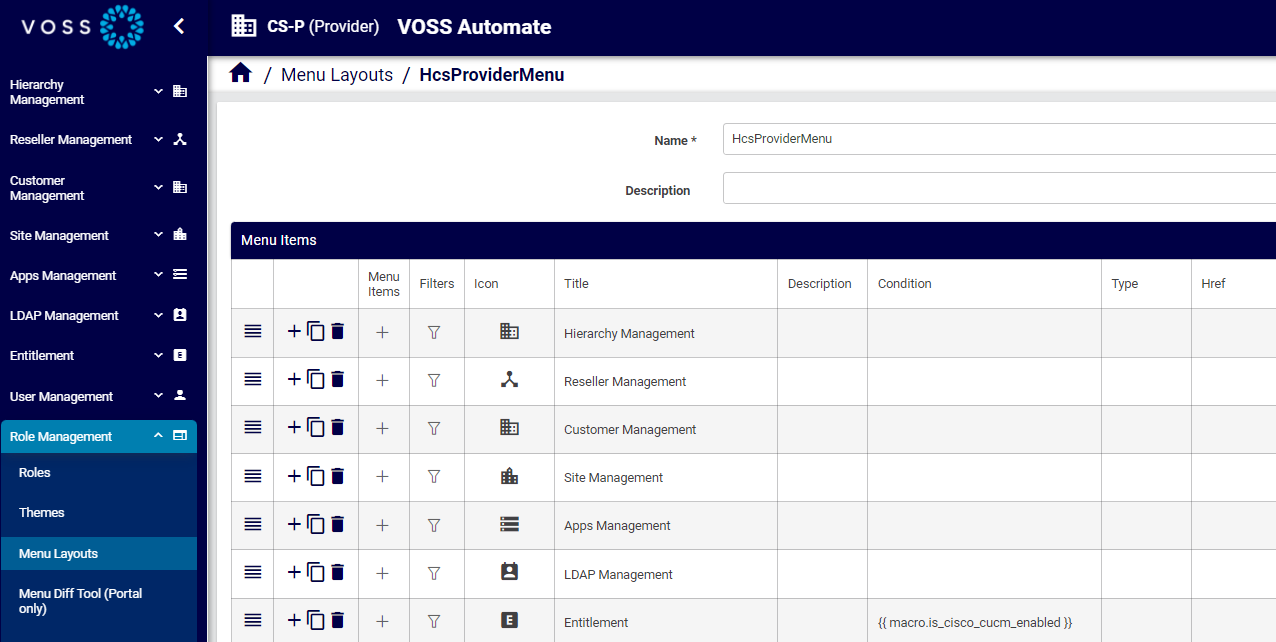
menu-layouts-provider

Related topics

  • Navigation - Menu and Dashboards
  • Advanced Configuration Guide
  • Fixed and configurable filters in menus
  • HCS Dial Plan Macros in Automate

Menu layouts, FDPs, and CFTs#

When creating or editing a menu layout, you can (optionally) apply a field display policy (FDP) and configuration template (CFT) to refine the view of model entities for the user role. In this way, the FDP and CFT for a specific model is applied as part of the menu layout (in the menu structure); the FDP and CFT are attributes of the specific model entry for that menu layout. This means:

  • Different FDPs and CFTs for a specific model can define menu layout variations for that model.

  • The required FDP and CFT should be available before you create new menus.
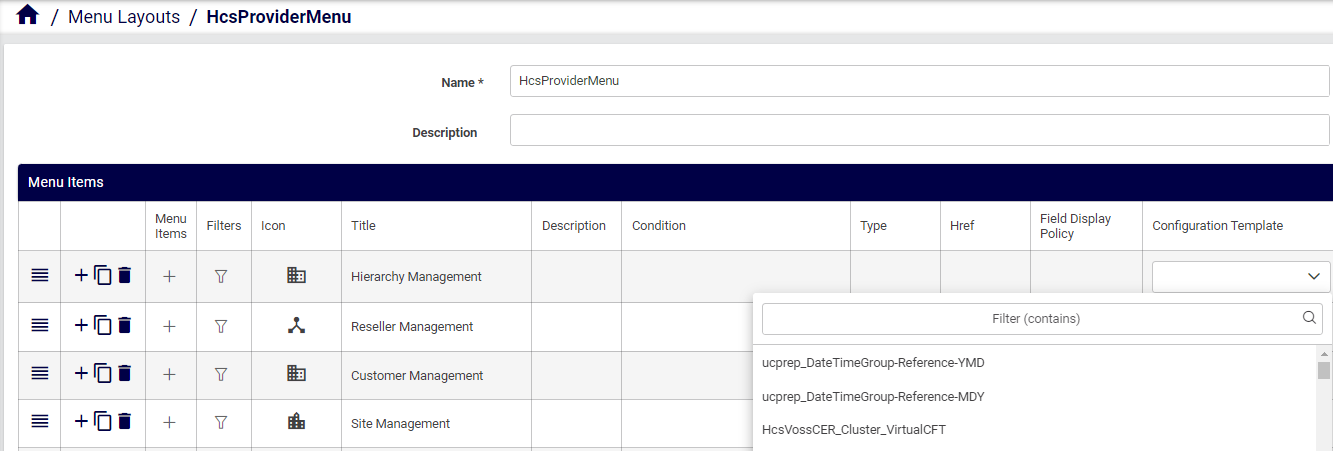
menu-layouts-fdp-cft

Fixed and configurable filters#

If a menu layout applies to the list view of a model, this list can be filtered by means of a number of filter options that apply to the displayed list. Only instances where the values of a model attribute that match the filter, are then shown. For details, see Fixed and Configurable Filters in Menus
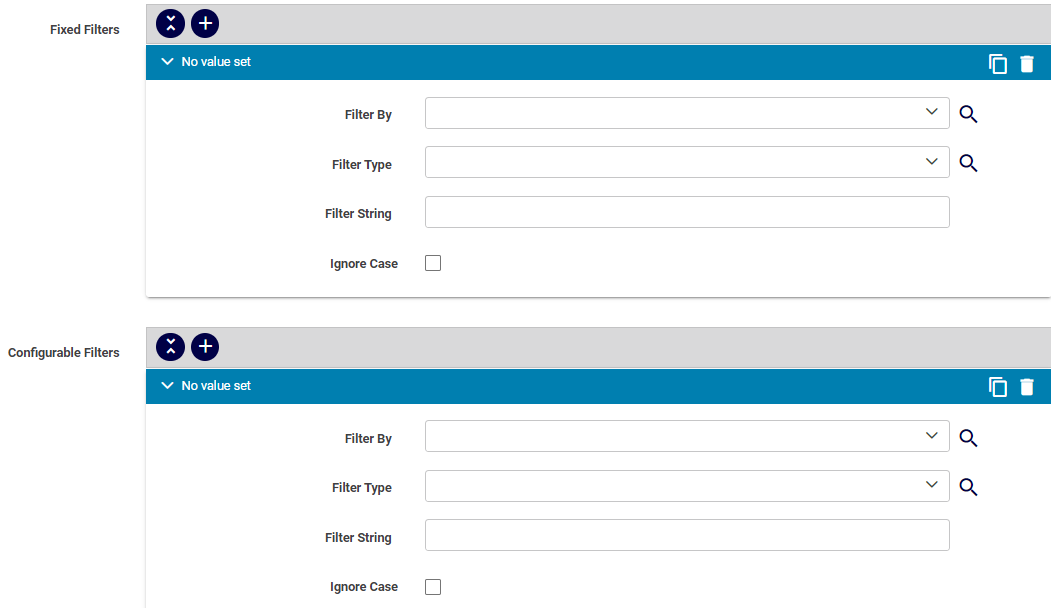
menu-layouts-filters

Default menu layouts#

Automate ships with a number of default menu layouts for the following, hierarchy-based administrator user roles:

  • System administrator

  • Provider administrator

  • Reseller administrator

  • Customer administrator

  • Site administrator

If you wish to create a new menu layout, you can create a copy (clone) of a default menu layout, edit the settings, and save it as a new, custom, menu layout.

You can also export a menu layout, edit it externally, and re-import it. For example, you can apply an alternative FDP or CFT, or change the order and grouping of items on the menu layout. Designers with access to tag or version tag can apply these to a menu layout so that it can be uniquely identified to track changes.

Note

The Automate documentation is based on the default, predefined menu layouts that ship with the system.

To work with menu layouts in the Admin Portal:

  • Go to Menu Layouts to view and edit menu layouts.

  • Go to Roles to view the menu layout assigned to a particular role, then click on a role and view the value in the Menu Layout field (which displays the menu layout for users with this role).

Best practice menus#

In addition to the default menu layouts, Automate provides best practice menus for Provider and Customer administrators, including the associated access profiles and dashboards.

The best practice menus are more business-oriented, and include additional options based on best practice adaptations that may also be included in Automate.

The table describes the key features of the best practice menus:

Feature

Description

Structure mapped to business use case

A menu order, nesting and naming convention based on common business use.

Menus are ordered ‘top-down, following the logical order of tasks and the system hierarchies that perform these tasks.

Example: For Provider admins, the Cisco UC App Management menu has menus only for these devices, while SMTP server and other settings that Provider admins use are arranged under a menu called Provider Configuration.

In a similar way, the Cisco User Services menu has sub-menus for all the functionality associated with Cisco users in Automate.

Naming convention

First word capitalized for menu names where the menu is for a form view (input or edit). For example ADD Internal Number Inventory

Where such menu names start with abbreviations or acronyms, for example, E164, HCS, or LDAP, the capitalization rule applies to the next word in the name.

Menus for URLs

Included in the structure are menus that provide links to other Automate portals, allowing you to launch a another portal directly from a menu.

For this to work, you must update these URLs to match your configuration.

Considerations when customizing and assigning a best practice menu

If you wish to modify a best practice menu and then assign the customized best practice menu to a user role, consider the following:

  • To add or update menu layouts, see Add or edit a menu layout

    Note

    A Menu Diff Tool allows you to easily modify menus. See the Advanced Configuration Guide for details.

  • To view or configure FDPs (field display policies) associated with menu items, see Add and edit field display policies.

  • To view or configure CFTs (configuration templates) associated with menu items, see Configuration templates.

  • For details around access profiles available for the best practices menus, see the list in the Access Profiles menu. To modify any access profiles to align with a modified menu, see Access Profile Permissions and Operations.

  • Note the dashboards available for the best practices menus. See the list under the Dashboards menu.

Menu layouts for a Business Admin role#

Automate provides two sample menu layouts for use or further customization as a Business Administration Portal menu layout. These sample menu layouts display in the Menu Layouts list view:

  • MenuCustomerAdmin

  • MenuSiteAdmin

Administrators can clone these samples to a hierarchy, customize them as needed, and assign them to a specific user role that requires a Business Administration Portal interface.

The sample menus also use sample dashboards to complete this Business Administration Portal interface. For details on the sample dashboards, see: Introduction to Automate Dashboards.

Note

The sample menus include conditions on the inclusion of dashboards in accordance with enabled features, services, and devices as in the Global Settings. The conditions are in the form of system macros, for example:

{{ macro.is_microsoft_enabled }}

or

{{ macro.is_cisco_cucm_enabled }}

The image shows an example of a sample menu displaying the sample Call Groups dashboard:
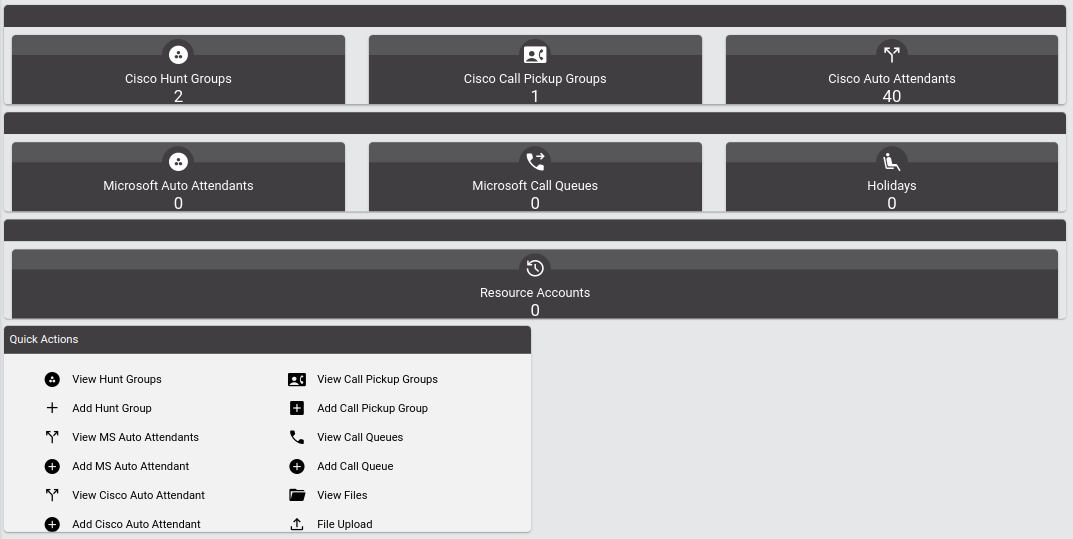
../../_images/dashboard-call-groups.png

Enhanced menu layouts and dashboards for multi vendor environments#

Automate provides two sets of menus, dashboards, and access profiles for use or cloning and further customization for multi vendors scenarios. These sets offer best-practice reference role-sets that can be used by service providers.

The set of best practice menus and dashboards is comprehensive and includes some add-on options which are not currently included in the core solution. If you want to use a specific option and get a permission error when trying it using the MVS- set, please reach out to the Automate account team to discuss.

Note

Multi vendor user (mvs) dashboards and menu layouts that contain links referencing an adaptation (add-on), have an asterisk (*) postfix in the link text.
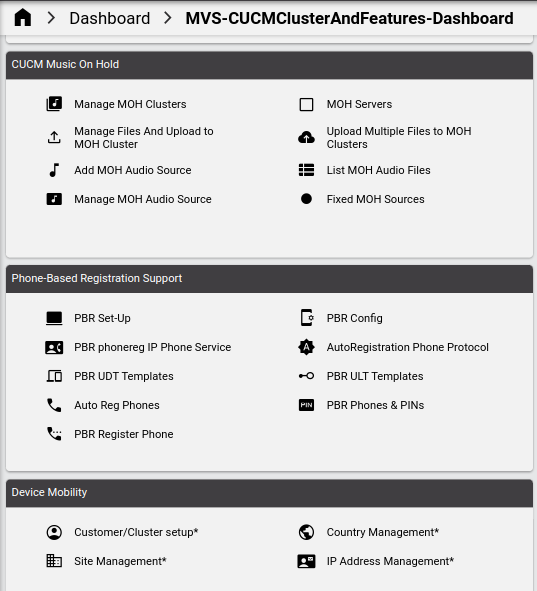
../../_images/dashboard-mvs-links.png

Microsoft-only deployment items contain MS-Only in the name, and menu names have the MVS prefix:

  • MVS-EnhancedProviderMenu

  • MVS-OperationsCustomerMenu

These menu layouts offer a number of benefits, for example:

  • A compact main menu list

  • Menu items directing users to dashboards consisting of items that can be selected to carry out a task - grouped into cards and all visible on one page

The comprehensive set of sample dashboards is provided and used in these menu layouts. They are identified by the dashboard name with prefix, MVS-, and suffix, -Dashboard. For example, the Role Management dashboard is MVS-RoleManagement-Dashboard.
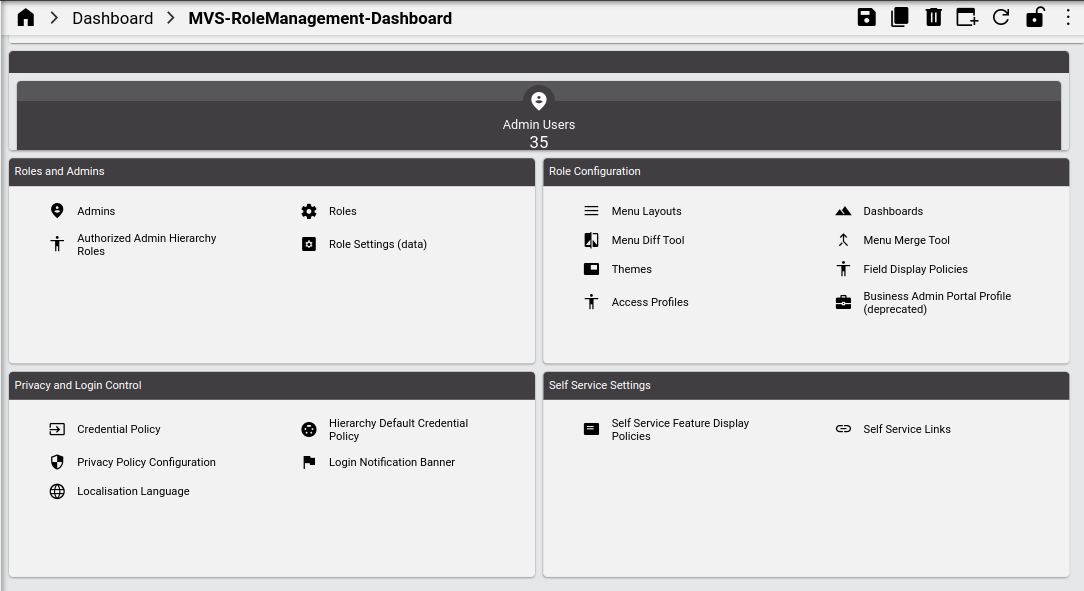
../../_images/mvs-enh-role-mgt-dashboard.png

Note

  • In release 21.4-PB3, the landing page MVS-GroupingServices-LP has been updated with a filter to exclude the listing of “user” Call Handlers. If this landing page is in use or previously customized, an updated customization of MVS-GroupingServices-Dashboard is required to enable this change in release 24.1.

This also includes home dashboards:

  • MVS-EnhancedProviderAdmin-HomeDashboard

  • MVS-Operations-CustomerAdmin-Home-Dashboard

These dashboards can therefore also be cloned and customized as required.

Access profiles associated with these menu layouts and dashboards can also be cloned and configured according to the customized menu layouts and dashboards. They contain the prefix:

  • MVS-EnhancedProviderAdminAP

  • MVS-OperationsCustomerAdminAP

The Condition field in menu layouts and dashboard widgets can be configured for multi vendors by using the macros as conditional values - as per enabled features in Global Settings:

  • {{ macro.is_microsoft_enabled }}

  • {{ macro.is_cisco_cucm_enabled }}

Sample administrator roles are provided that combine all these elements:

  • MVS-EnhancedProviderAdministrator

  • MVS-EnhancedCustomerAdministrator

Add or edit a menu layout#

This procedure adds new menus and modifies existing menus. You can create a new layout for your system or update the default menu layout.

  1. Log in to the Admin Portal as a Provider or Reseller administrator (or higher).

  2. Choose the hierarchy for the new menu layout, for example, Customer.

  3. Go to Menu Layouts.

  4. Choose an option:

    Create a new menu layout, based on settings in an existing menu layout

    Recommended method.

    Click on the menu layout you wish to copy. On the menu layout editing screen, click the toolbar Clone icon. A new record is created with pre-populated settings.

    Go to the next step to edit settings for the clone to create a new, custom menu layout.

    Create a new menu layout as a new record (without existing settings)

    Click the toolbar Plus icon (+) to open the Menu Layouts/New Record page. Go to the next step to set up the new menu layout.

    Edit an existing menu layout

    Click on the menu layout you wish to edit, update its settings, then save your changes. Log out, then log in again to see your changes.

    Note

    • You can click in a row to edit a value (either type in the field or select an option from a drop-down)

    • Rows with nested menu items or links contain a chevron (>) instead of a Plus icon (+) so that you can see which items have child lists.

    • An asterisk indicates required values.

    • For further details around menu configuration, see Menu layout settings.

  5. At Menu Items, configure the main menus and sub-menus, as required

    • To re-order menus, click on the hamburger icon and drag items to the required position.

    • To add, clone, or delete rows for main menus and nested sub-menus, click the Plus icon, Clone icon, or Delete icon in the relevant row.

      Note

      Clicking the Delete icon in a row triggers a system message asking you to confirm that you want to remove the row. This allows you to review the change in case you clicked the Delete icon by mistake. Clicking the toolbar Save icon saves all changes to the menu layout you’re configuring.

      menu-layouts-add-clone-delete-icons

    • Add, clone, or delete sub-menus (click the Plus icon in the Menu Items column to display nested sub-menus).
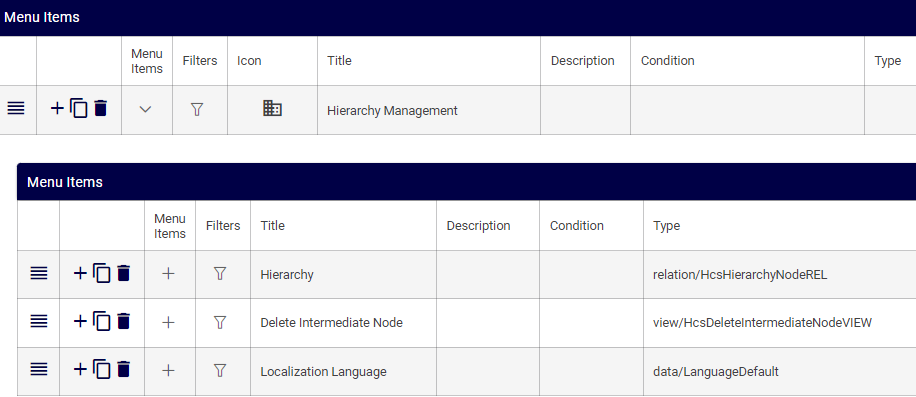
      menu-layouts-sub-menus

    • At Filters, configure fixed and configurable filters.

    • At Icon, choose a menu icon (main menus only). See: Custom icon names reference.
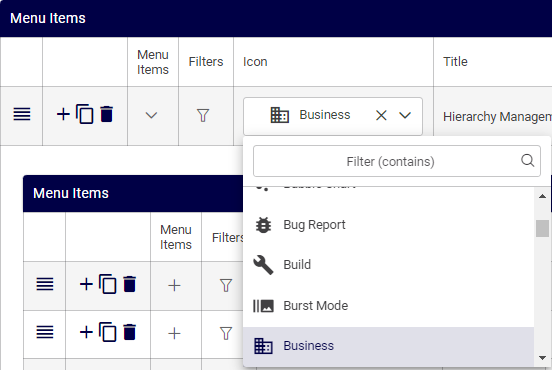
      menu-layouts-icons

    • At Title, add or edit the menu title, and (optionally), provide a description.

    • At Condition (optionally), fill out a condition to define when the menu will display.

    • At Display As, choose an option to define how the menu or sub-menu will display. Options are: Form, List, External Link, or Dashboard.

      Note

      • The value for Display As must be Form when the value at Model Type is view.

      • The value for Display As must be Dashboard if you’re choosing a dashboard.

    • At Type, choose the model type.

      Note

      When type is view (view/ModelType), the value in the Display As column must be Form.

    • At Href, create internal or external links.

      Note

      • If Display As is set to External Link, the Href value should start with http.

      • If Display As is set to List, the internal Href value should start with /api/.

      • If you wish to provide a sorted list view of a model in a menu item, the Href internal href value can be entered with additional parameters to specify attribute and sort order. In this case, Display As should be selected as List, with the direction parameter to sort.

        For example, if Href is:

        /api/data/Countries/?order_by=iso_country_code;direction=desc
        

        the list view from the menu item of data/Countries will be sorted in descending order, by iso_country_code: ZIM, ZAF, VNM, USA, UKR,... and so on.

    • At Field Display Policy, choose a field display policy, if required.

    • At Configuration Template, choose a configuration template, if required.

    • Select Set as default Model Type to define that when a user navigates to a form for that model from a location where any of the FDP, CFT, and title is not available, then the form will contain these elements configured as the default.

      Note

      If no default is set, or multiple defaults are set for FDP and CFT selection, the selection is random. Multiple defaults will also yield an error message in the browser console if the Browser Console Log Level is set to Debug (see: Guide to the Admin Portal user interface) The format of the message is:

      Multiple defaults configured for ... <model-type>
      

      It is therefore advisable to explicitly set the default and ensure that only one default is set.

    • At Dashboard, you can instead choose an existing dashboard to associate with the menu item.

      Note

      • You can choose a dashboard for a main menu, sub-menu, or sub-sub-menu.

      • When setting a dashboard, the value in the Display As column must be Dashboard.

  6. Click Save. Updated or new menu layouts are saved.

  7. Assign the menu layout to the appropriate roles.

Menu layout settings#

This section describes menu layout configuration options:

Note

You can view, add, and edit menu layouts in the Admin Portal via the Menu Layouts page. See Add or edit a menu layout

Field

Description

Name

Mandatory. The menu layout name.

Description

A description of the menu layout.

Menu Items

This section displays the menus and sub-menus in an editable table layout.

Menu items#

The table describes configuration options the Menu Items rows on the Menu Layouts page:

Column

Description

Reorder

Click on the reorder icon (hamburger) in the relevant row to change the location of a menu.

Add, clone, or delete row

Click an icon to either add a row, clone (copy) a row, or to delete the row.

Clicking the Delete icon in a row triggers a system message asking you to confirm that you want to remove the row. This allows you to review the change in case you clicked the Delete icon by mistake. Clicking the toolbar Save icon saves all changes to the menu layout you’re configuring.

Menu Items

Click the Plus icon to expand nested menus. Click the chevron to collapse expanded menus.

Filters

Click the filter icon in the relevant row to display a dialog where you can choose fixed and configurable filters for a menu item.

Fixed filters cannot be removed. The following options are available for configurable filters:

  • Filter By

  • Filter Type

  • Filter String

Icon

The icon to use for the menu item. Click in the cell to choose an icon. Icons display in the drop-down with a descriptive name.

Title

Click in the cell to add or edit the name (title) of a menu item.

Description

Click in the cell to add or edit the menu description.

Condition

Click in the cell to add or edit a macro that allows you to display/hide a menu and its sub-menus, based on a condition specified in the macro. If the macro evaluates to true, the menus and sub-menus display, else, when false, the menu and its sub-menus are hidden. The default is true (menus and sub-menus you add on this page display by default). See the Advanced Configuration Guide for more information about using macros.

Type

Click in the cell and choose a model type (for example, relation or view) to associate with the menu item.

When type is view (view/ModelType), the value for Display As must be Form.

Column

Description

Href

Click in the cell to specify a path as a direct reference to a model type used for the menu item.

Links can be external or internal. Hrefs are generally recommended for external links. For backwards compatibility, hrefs can be used for links within the application, to link directly to a form. For example, the Add Phone page would have the following href value: api/relation/SubscriberPhone/add

In this case, you will need to use JSON format menu import, or bulk load, to add any associated FDPs (field display policies) and CFTs (configuration templates) for the menu item.

It is recommended that you do not use hrefs to reference view/ type models.

Field Display Policy

Click in the cell to choose a FDP (field display policy) to associate with the menu.

Configuration Template

Click in the cell to choose a CFT (configuration template) to associate with the menu.

Set as default Model Type

If selected, the FDP, CFT and title is taken as default when navigating to this model from outside the menu.

Column

Description

Dashboard

Choose the dashbaord to display when clicking on a menu. Mandatory when the value for Display As is Dashboard.

Sub-menus and sub-sub-menus can be selected as dashboards. Individual dashboards do not have their own specific context-sensitive help.

Display As

Defines how the menu item displays.

Options are: List, Dashboard, Form, External Link, Tree

  • List (default)

    For two or more instances. If you choose List, and you’ve selected a default FDP and CFT for the model type, users with a user role associated with the menu layout view the model type based on these options. It is also possible to filter the list view. If you choose List display referenced by type or href, note that a tool (tool/[toolname]) can also be presented as a list, for example: /api/tool/Transaction/?entity=data/Event&operation=execute

  • Dashboard

    When Display As is dashboard, you must choose the dashboard to display when a user clicks on the menu item.

  • Form (for a single instance)

    If you’re using href and you choose the Form display, the href value points to a model instance with the pkid, for example data/Countries/5331a739d0278d7893e26d2e, or ends with /add/. The value for Display As must be Form when the value for Type is view. The view/ model types always open the Add form; thus, if used, the value should not have the /add/ endpoint, for example, as in this JSON:

{
  "type": "view/QuickSubscriber",
  "display": "form",
  "title": "Quick Add Subscriber"
}
  • External Link

    Href is required if the value for Display As is External Link. A URL specified as the href value opens as a new browser tab. You’ll need to disable pop-up blocking on the users browsers to allow the external link to resolve.

  • Tree (if available, for two or more instances)

    Choosing a Tree display shows a tree view of the resource. When using href with Tree display, the href provides the tree path.

Custom icon names reference#

This reference refers to the icons associated with the Icon name drop-downs in the interface.

For details, see: https://fonts.google.com/icons

To associate the icon of the in the drop-down, inspect the icon titles on the website, remove the title hyphens and capitalize the first letter of each word.

Related Topics

  • Fixed and Configurable Filters in Menus

  • Introduction to Automate Dashboards

previous

Login banner

next

Menu diff tool

  On this page
  • Overview
    • Menu layouts, FDPs, and CFTs
    • Fixed and configurable filters
    • Default menu layouts
    • Best practice menus
    • Menu layouts for a Business Admin role
    • Enhanced menu layouts and dashboards for multi vendor environments
  • Add or edit a menu layout
  • Menu layout settings
    • Menu items
  • Custom icon names reference

By VOSS Solutions

© Copyright 2025, VISIONOSS LIMITED.