
Counter widgets#
Counters are typically used to provide a quick count of a resource, and have the option to display a list view of the values when selecting the counter.
Note
Counter values reflect the hierarchy at which the counter is viewed.
Condition: The display of the widget on the dashboard can be controlled by entering a condition that resolves to boolean True or False, for example in accordance with enabled features, services, and devices as in the Global Settings. The conditions are in the form of system macros. See for example the macros listed under the Links topic below.
Data Source: Insights or Automate
Resource: only available for Insights
Fields: For Insights resources, one or more instances of Field Name can be selected in counters. These field names will then be shown as individual counters in a set of counters. An Operation can be selected for these in order to modify the counter.
For example, if a Field Type is “Text” and has duplicate values, and the Operation on the field is:
Grouping Count, then counters will be shown grouping the duplicate fields into separate totals.
Alternatively, where Resource provides values for Field that have a Field Type of “Integer”, additional Operation options are available that apply to integers, for example:
Avg: a ratio of the current field over a total, for example, users with MS Teams Voice over total users
Sum: for example, the sum total users with MS Teams Voice
The User Overview dashboard counters can for example be inspected to see the application of operations on integer fields.
Counters can also for example show a count that is grouped by additional fields. Consider a counter with:
Data Source: Insights
Resource: Multi vendor user count view
Field Name, Field Type, Operation: count_data_users, Integer, Count
Field Name, Field Type, Operation: Provider, Text, Group By
Field Name, Field Type, Operation: Customer, Text, Group By
The counter displays the number of users as grouped by each Provider-Customer
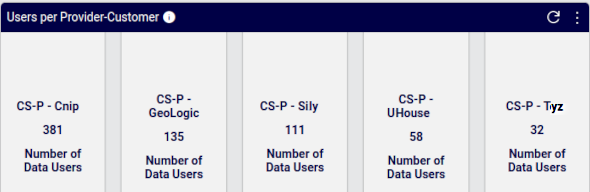
When a counter widget is selected, it is also possible to switch to another widget format during the edit and design process. The Widget Type can be updated from the dropdown. Changes are reflected in real-time during the design of a widget or by using the widget’s Refresh icon.
One or more Filters can be applied to a selected Field Name, using an Operation and Filter Value.
Examples for Resource = “Cisco UCM User”:
Settings:
Fields - Field Name: “firstName”, Operation: “Grouping Count”
Filters - Field Name: “firstName”, Operation: “Regex (Case sensitive)”, Filter Value:
^An.
The resulting counter shows grouped counts of the first names of Cisco UCM users where the first name starts with “An” (case-sensitive).
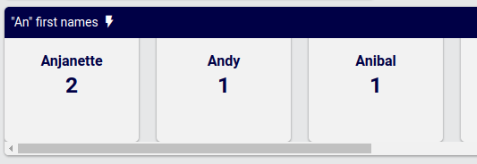
If for Fields above, the Operation was “Count”, then a single value of the total of all users with first name starting with “An” (case-sensitive) would display in the counter.
Settings:
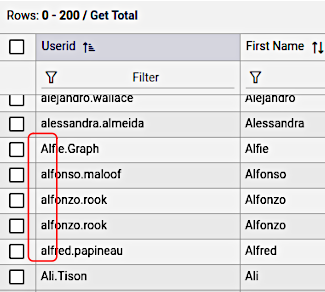
Fields - Field Name: “userid”, Operation: “Count”
Then:
Filters - Field Name: “userid”, Operation: “LIKE (Case sensitive)”, Filter Value:
alf%.The resulting counter shows a count (4 - see image below) of the userid’s that start with “alf” (case-sensitive).
Or:
Filters - Field Name: “userid”, Operation: “ILIKE (Case insensitive)”, Filter Value:
alf%.The resulting counter shows a count (5 - see image below) of the userid’s that start with “alf” (case-insensitive), which is larger, given data as in the example image of userids below.
Note
The Filter Value can contain
%characters, indicating variable string values at the position of the%character. For example:%alf%will matchnorman.alfred;alf%will matchalfred.normanand%alfwill matchnorman.fredalf.Type: only available for Automate resources. This is the selected model type (e.g.
data/Countries). A Title, Icon, Field Display Policy, Condition and Configuration Template can also be applied to the selected model type.Filters: For Insights resources, field names can be selected and a matching operator selected to apply to the name in order to filter a counter value (as in the example under Fields above). For Automate resources, see the topic Fixed and Configurable Filters in Counters and Links - that will then be applied when the counter is selected to open the filtered list view.
Counter Settings: a limit on the value can be specified, prefix and suffix text can be inserted for the value, as well as default values for empty groups.