
Dashboard and Widget Management#
Administrators can manage dashboards from the Dashboards link that is a part of the Role Configuration on the Role Management dashboard.
Operations on Dashboards#
When adding or editing a dashboard, a number of menu items are available to carry out dashboard related tasks.
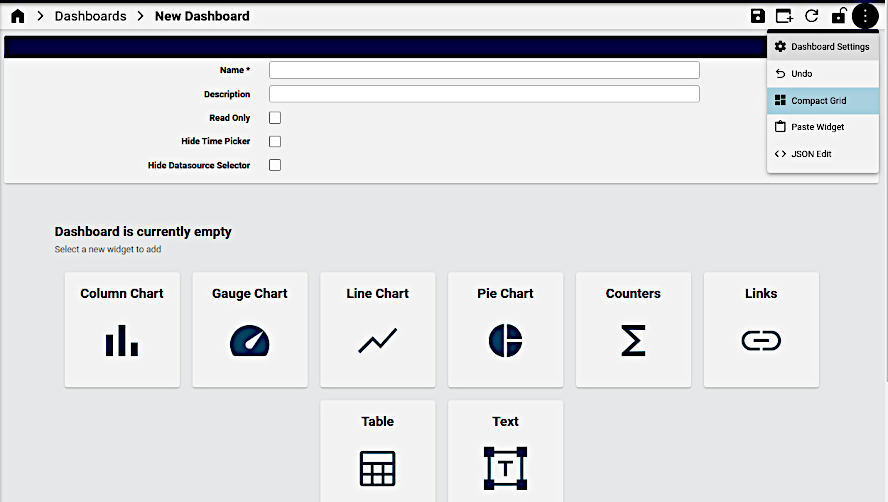
Add or Edit:
Name: the display name of the dashboard
Description: detailed description to describe the dashboard - available on the Dashboards list view.
Read Only:
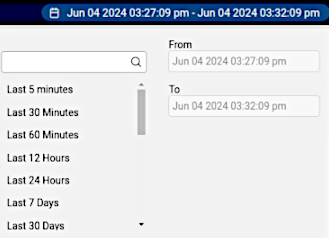
Hide Time Picker: by default, a Time Picker control is available to filter dashboard data by start and end date. Note that any selected dates are reset upon logout and that future dates cannot be specified by the Time Picker. Select this check box to hide the time picker.
Hide Datasource Selector: additional option for future releases
Clone: Use the Clone icon from the dashboard toolbar. The cloned dashboard opens with the breadcrumb name appended with the text:
[CLONE]and contains all the widgets of the source dashboard. The cloned dashboard Name is the same as the original source dashboard name and can be modified as required.Note
Dashboards with the same name can be available at different hierarchies. When such a dashboard is referenced, this first one found higher up from the administrator user’s login hierarchy is selected.
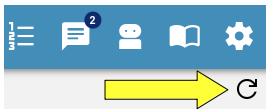
Refresh Dashboard: use to update synced data on the dashboard to reflect any system data changes.
Note
Dashboard widgets each also provide a similar Refresh button when hovering over the top bar of the widget - similarly to refresh individual widget data.
Lock: lock the arrangement of widgets
Dashboard Settings: a toggle menu item to show or hide the dashboard name, description and properties as listed above.
Undo: revert the dashboard to the state of the last unlock. So, if the lock has been used even once on the dashboard, the unlock will always return the dashboard to the state it was after it was unlocked, even if multiple changes were done since. If the dashboard was never locked, an Undo will lock it, forcing the user to unlock and create a snapshot point. This snapshot is the same as the uploaded dashboard. (Note: the undo functionality is currently under review.)
Export: Use the Export icon from the dashboard toolbar to export one or more instances - for details, see: Bulk Export of Model Data. Exported dashboards can then be modified and imported at a required hierarchy using the Import menu.
Compact Grid: automatically optimize the arrangement of widgets on the dashboard, give their current size.
Paste Widget: Use the Paste Widget icon from the dashboard toolbar menu to paste a widget selected with the Copy Widget option on the widget menu into the current dashboard. Widgets can therefore be copied between dashboards.
JSON Edit: Use the JSON Edit icon from the dashboard toolbar to edit the dashboard data in JSON. For details, see: Manage Items.
Operations on Widgets#
When a dashboard is created or maintained, widgets can be added, removed or edited.
To add a widget, select Add (+) from the toolbar and then on the design form, either select the widget from the toolbar or from the provided list of icons:
To edit a widget on a dashboard, select the dashboard from the list and choose Edit from the widget’s menu. The widget menu provides a number of operations.
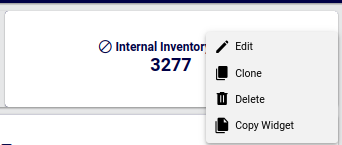
Edit:
Use the Edit icon from the widget menu to edit the current widget. refer to the details below on available edit options.
Clone:
Use the Clone icon from widget menu to clone the widget on the dashboard. The clone can then be edited as required.
Delete:
Use the Delete icon from the widget menu to remove the widget from the dashboard.
Copy Widget:
Use the Copy Widget icon to copy the current widget in order to paste it into a dashboard using the dashboard Paste Widget menu item.
Export data:
Where a widget offers data in a compatible format, the Export data on the widget menu allows for a MS-Excel or comma-separated value (CSV) export to a file, as in the Number Status example below:
Status,Count
Used-Utility,6
Cooling,35
Used,63
Reserved,106
Available,3850
Note
For widgets where the Resource is an Insights resource, the option to export All Records is not available.
For 24.2 installations where the “Insights Netflow” deployment option was selected, widget Data Source dropdown fields also show Netflow. For details, contact VOSS.
Note
Not all widget options and possible combinations are covered in this document. The widget refresh option can be used to inspect the impact of an option. For assistance in creating widgets, you can also contact VOSS support.
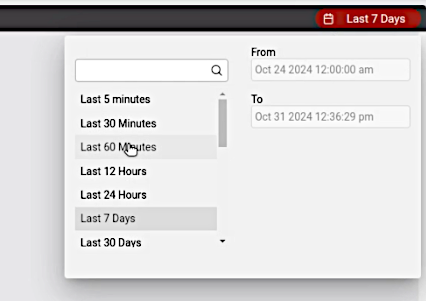
Where a widget resource references data over a time period (such as transactions), the widget interface provides a time picker control to indicate and change the interval for the data shown on the widget.
Dashboard Sync and Refresh#
A real-time sync process is running to maintain VOSS and Insights databases in sync.
After upgrade to release 24.2, dashboard management is available after 30 minutes,
since the scheduled delta-sync process initially carries out a full sync and thereafter
an incremental resource sync.
See: Insights Analytics in the Platform Guide.
Important
Dashboard fields showing the item hierarchy (similar to Located At) are updated only when a delta sync runs. For example, if you’ve added users to the system and then moved them to a site, any charts, counters, or tables showing a count of users (at that site or at the system level), will only reflect the correct number of users once a delta sync runs and not when simply refreshing the dashboard or widget in a real-time sync. Until the delta sync runs, the hierarchy fields for these users display on dashboard charts, tables, or widget counters as with no (empty) hierarchy value. See Dashboard Sync and Refresh.
Manage Value Mapping#
VOSS Automate provides options to allow for custom, alternative field values of resources to be displayed in chart widgets by using the Value Mapping field.
This optional value is applied during the design of a widget and
is typically used to present a more user-friendly field value in a chart widget,
for example, to map the value of Cisco Codec Mappings originally: 0
to mapped: No Media Established.
A menu Role Management > Dashboard Value Mapping
(data model: data/DashboardValueMapping) is available
to provider administrators and higher to add, delete and manage mappings.
The model contains the default individual mapping value: NO MAPPING.
The design of a mapping allows for the selection of an evaluation operator to apply to the original value as an input condition and then to provide the replaced value in accordance with the evaluation operator test result.
Evaluation operators that can be applied to the original field values are:
Regex
Greater than
Less than
Range (with “Max” and “Min” parameters)
Equals
Note
More than one original field value can be mapped to a single mapping key.
Updating existing mapping confurations have a refresh delay of 30 minutes.
Examples:
If name:
Cisco Codec MappingsEquals0, then the mapping key isNo Media Established.Microsoft 365 service plan mappings by matching Microsoft Entra ID values:
If string ID Regex
(^SPB$)matches, then mapping key isMicrosoft 365 Business Premium.If string ID Regex
(^O365_BUSINESS_PREMIUM$)matches, then mapping key isMicrosoft 365 Business Standard.