
logo

VOSS Insights 23.1

  • Release Notes for Insights 23.1
  • Compatibility Matrix
  • Analytics Install Guide
    • What’s New
    • Insights Analytics Quickstart
    • Dashboard Download
    • Dashboard Reporting VM Sizing Specifications
    • Cloud Installation
    • Arbitrator and Dashboard System Connectivity
    • Cisco UC Monitoring System Connectivity
    • MS Teams System Connectivity
    • NetFlow and DS9 Monitoring System Connectivity
    • VOSS Automate Port Usage
    • Skype for Business Monitoring System Connectivity
    • Deploy and VM Installation Steps
    • VOSS Automate Database Setup
    • Install Dashboard System
    • Add or Update Certificates
  • Arbitrator Install Guide
    • What’s New
    • Insights Assurance Quickstart
    • Arbitrator Download
    • Arbitrator VM Sizing Specifications
    • Arbitrator Correlation Consolidation VM Sizing Specifications
    • DS-9 NetFlow VM Sizing Specifications
    • Raptor Call Path Generation VM Sizing Specifications
    • Cloud Installation
    • Arbitrator and Dashboard System Connectivity
    • Cisco UC Monitoring System Connectivity
    • MS Teams System Connectivity
    • NetFlow and DS9 Monitoring System Connectivity
    • VOSS Automate Port Usage
    • Skype for Business Monitoring System Connectivity
    • Avaya Call Manager Connectivity
    • Deploy and VM Installation Steps
    • Install Arbitrator System
    • Set up Arbitrator to Arbitrator Communication
    • Add or Update Certificates
    • Add Customer CDR Folders
    • Add Customer Assets
    • Assigning Probes to Assets
    • Application User
    • Enterprise Parameters
  • DS9 for NetFlow Install Guide
    • What’s New
    • NetFlow Quickstart
    • DS9 Download
    • VOSS Insights DS9 for NetFlow Product Registration
    • VOSS Insights DS9 for NetFlow Base Environment Installation
    • Preparing a Production Environment for VOSS NetFlow Solution
    • DS-9 NetFlow VM Sizing Specifications
    • NetFlow and DS9 Monitoring System Connectivity
    • Deploy and VM Installation Steps
    • DS9 Configuration on the Dashboard
  • Insights NetFlow System Function Validation Steps
    • Overview
    • NetFlow Collector System Health Check
    • NetFlow Collector NetFlow Ingestion Count Increase Check
    • Dashboard Server System Status API check
    • Dashboard Server GUI Login - Interface Validation Check
    • Dashboard Server NetFlow Data Rendering Check
  • Windows Forwarder Install Guide
    • What’s New
    • Introduction
    • Install Windows Forwarder
    • Configure Windows Forwarder
    • Save and Retrieve Settings
    • Reporter Integration
    • Centralized Management
    • Setting up a Data Source Name (DNS)
  • Avaya Integration for Insights
  • Cisco Expressway Integration
  • Dashboard Administration Guide
    • What’s New
    • Introduction to VOSS Insights Dashboard
    • Dashboard Licensing
    • Log Search
    • Search Definitions
    • Introduction to Dashboards
    • VOSS Reference Dashboards
    • Custom Dashboards
    • Working with Dashboards
    • Managing Widgets
    • Fields Details
    • Filters Details
    • Building a Chart Overview
    • Line / Area Chart
    • Column / Bar Chart
    • Scatter Chart
    • Pie / Doughnut Chart
    • Funnel Chart
    • Gauge Chart
    • Card Chart
    • Table Charts
    • Call Hop Charts
    • SIP Signaling Ladder Diagram Charts
    • Multi Chart
    • Chord Diagram
    • Combo Chart
    • Color Palette Changes
    • Build Chart in Widget Editor
    • Drilling down into the Data
    • Import/Export Wizard
    • Manage Dashboards
    • Edit Field Groupings
    • User Settings
    • Manage Forwarders
    • Configuration
    • Theme Management
    • DS9 Configuration
    • About
    • Help
    • Edit Account
    • Sign Out
    • Reports
    • Data Sources
    • Access Controls
    • Backup and Restore the Dashboard
  • Arbitrator Administration Guide
    • What’s New
    • Introduction
    • Arbitrator Licensing
    • Correlate
    • Configuration
    • Backup and Restore the Arbitrator
  • Dashboard and Arbitrator Maintenance and Upgrade Guide
    • What’s New
    • Upgrade
    • Add or Update Certificates
  • Platform Guide
    • What’s New
    • VOSS Insights Platform Functionality
    • Reporter Commands
    • Application Status
    • Reporter Logs
    • Override Default SSHD Keys for CUCM
    • Elevated Access for Debugging
  • UC Apps License Sync Guide
    • Overview and Conventions
    • Prepare MTLs
    • Prepare Data Syncs
    • Update UC App licensing
    • Execute Data Sync
    • Refresh VOSS Insights Reports
  • Arbitrator API Guide
    • What’s New
    • References and Conventions
    • Resources Overview
    • alerts
    • assets
    • ciscocdr
    • system
    • Resources v2 Overview
    • /v2/login
    • /v2/alerts
    • /v2/lxt_updates
    • /v2/configs
    • /v2/configs/asset_groups
    • /v2/configs/assets
    • /v2/configs/profiles
    • /v2/configs/probe_groups
    • /v2/configs/probes
    • /v2/configs/credentials
    • /v2/system
    • References
  • Dashboard API Guide
    • What’s New
    • Overview
    • assets
    • dashboards
    • system
    • Overview
    • /v2/login
    • /v2/lxt_updates
    • /v2/users
    • /v2/system
    • /v2/msteams
    • References
  • Arbitrator Probes to Monitor Cisco PRI and SIP Performance Monitoring
  • How to configure a Cisco ISR router to send NetFlow v5 data to VOSS Insights Arbitrator
  • How to configure a Cisco ISR router to send NetFlow v9 or IPFIX data to VOSS Insights Arbitrator
  • Preparing a Production Environment for VOSS NetFlow Solution
  • Open Source License Usage
    • Insights Arbitrator Open Source Licenses
    • Insights Dashboard Open Source Licenses
    • Insights DS9 Open Source Licenses
  • Insights Security
    • Security Overview
    • Restricted User Shell
    • Supported SSL Ciphers
  • Glossary

We appreciate and value your comments. Email: documentation@voss-solutions.com
Click here to access our latest documentation
  • Home »
  • Dashboard Administration Guide »
  • Log Search
On this page
  • Overview
  • Search Tab
  • Create Definitions Tab

Log Search

Overview

The Search page stores all log data elements in a JSON index data store.

On this page you can search all data, and add and edit log search/extraction definitions.

You can select the following tabs on this page:

  • Search Tab

  • Create Definitions Tab

Note

To access the Search page, click the Main Menu icon main-menu-icon, then select the Search menu at the bottom left of the main menu.

Search Tab

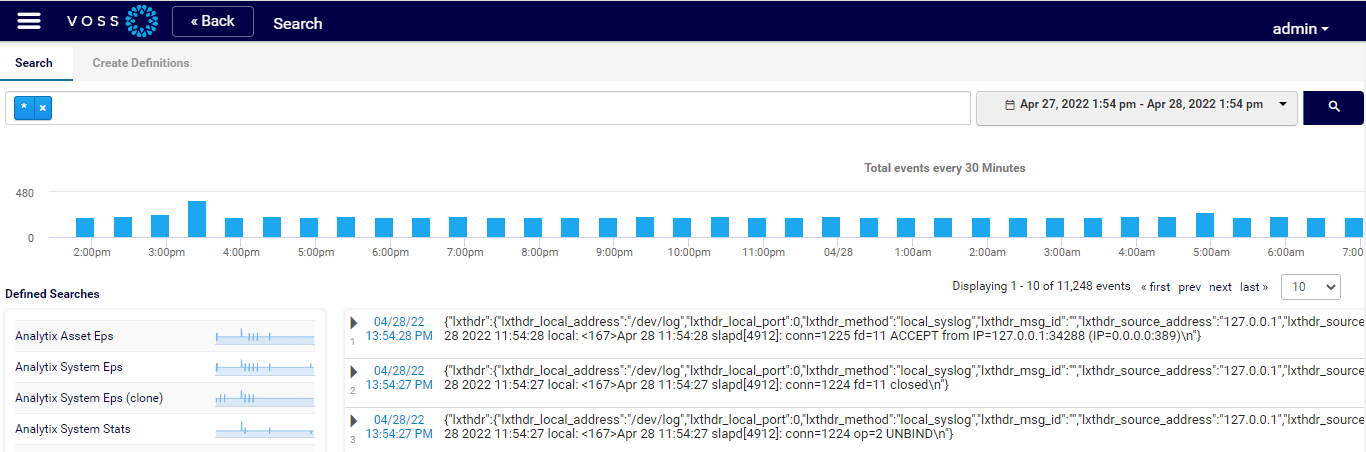
By default, the Search tab displays the last 10 log events to enter the system. Once Logs are collecting, this is where the JSON indexed records will be located. The system builds a library of all words contained in logs.
../../../_images/analytics-log-search-section2.png

Search Criteria

A search bar at the top of the page contains a wildcard “*” to display logs. The search bar allows for key word searches using single words or concatenated words with Boolean logic, such as ‘and/or/not’, in addition to using VOSS Insight’s automated Regular Expression engine to perform search extractions and save them as definitions. The search engine displays all words once you’ve typed in the first letters.

The drop-down to the right of the search bar defines the time period to search for logs. The default is the last 24 hours. This setting is important, especially when searching for logs from a source that has stopped sending data, since log data (and the JSON indexed records) are time-based.

To set a date and time range period, click the down-arrow at the drop-down in the Search bar to display a date/time calendar, where you can select a preset period (Last 24 Hours, Last 1 Hour, Last 30 Minutes, Last 5 Minutes) along with a custom date and time selection.

Note

The longer the date range, the more data the system searches, thus the search time period is directly associated to the amount of data over time.

Viewing Search Results

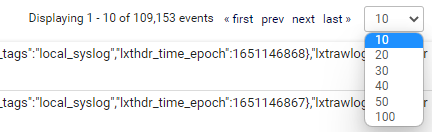
The page displays the number of logs displayed and available, based on the search criteria and the selected date/time range. You can use the first/prev/next/last buttons to skip to navigate the data. The adjacent drop-down allows you to define the number of logs to display on the page.
../../../_images/analytics-how-many-logs.png

Bar Graph View of Log Data

The bar graph below the search bar displays the last 24 hours (default) of log events. Each bar represents the quantity of logs collected in each 30 minute interval.

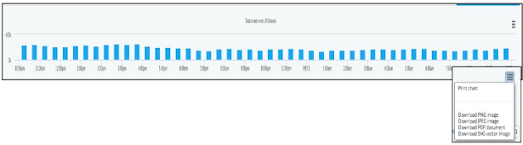
The Chart context menu hamburger icon to the right above the bar graph provides an option to retrieve the graph in multiple formats, for example, to print or download to PDF, to download to PNG, JPEG, or SVG.

The bar graph changes based on the selected data interval, and based on the selected definitions.
../../../_images/analytics-retrieve-graph-formats.png

Defined Searches

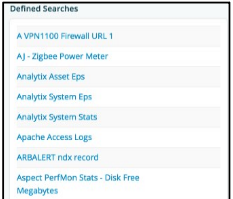
The Search tab contains a Defined Searches field, which lists all saved search definitions.

A graph to the right of each search definition indicates the amount of logs in that definition, for the time period selected in the time bar.

Select a defined search to refresh the page to display all the logs for that definition. The bar graph also adjusts to reflect the quantities of logs in this definition.
../../../_images/analytics-saved-search-definitions.png

JSON Format Logs

The main body of the Search tab displays the JSON format of the logs associated with the selected search definition. Details below each log are the data fields that have been extracted and are being analyzed on dashboards. A down-arrow at each field opens a dialog that provides search functions to select from:

Search in context

Searches through all of the selected definition for that field and highlights it.

Exclude from search

Searches through all of the selected definition for all data without that field.

Search all

Searches the entire log index data store for that field and highlights it.

../../../_images/analytics-search-functions.png

The right-pointing arrow at the left of each log entry allows you to expand the log details, providing information for each component of the logging elements along with a copy of the raw log.

Click the down-arrow within the expanded log view for any item to search (Search in context, Exclude from search, or Search all).
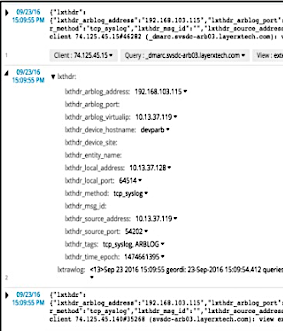
../../../_images/analytics-log-components.png

Create Definitions Tab

On the Create Definitions tab you can define the search definitions that display logs on the Search tab.
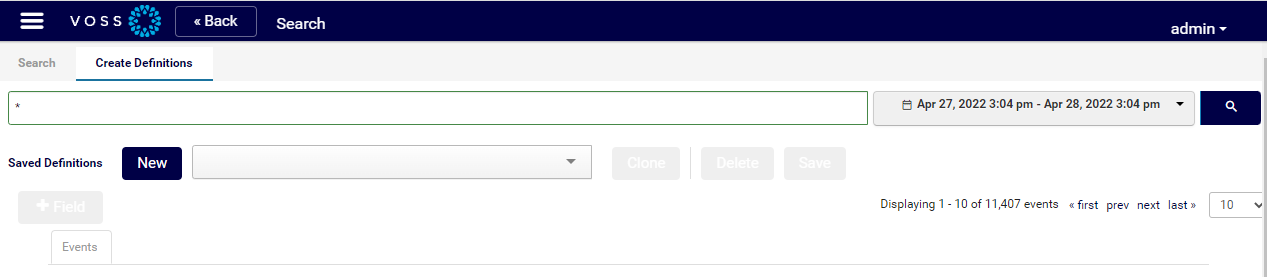
../../../_images/insights-dashboard-create-definitions.png

previous

Dashboard Licensing

next

Search Definitions

By VOSS Solutions
© Copyright 2023, VISIONOSS LIMITED.
