Navigating the Hierarchy
A number of Admin Portal features are available to quickly and effectively navigate to a required hierarchy level and to set the context for various actions in the system at that level.
Bread crumbs
Navigate through the hierarchy by using the hierarchy bar at the top of the page. Each hierarchy node selection from a drop-down list on the bar that is a parent node may enable a lower level drop-down list, creating a “bread crumbs” list of the hierarchy path. Long lists show a scroll bar in the drop-down lists.
If more than 2 items are in the drop-down list, a search box shows in the list input box. A case-insensitive search can be carried out with a string that is contained in the name.
Hierarchy Tree view
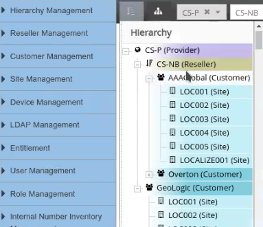
Use the tree view icon on the hierarchy bar at the top of the page to show a tree view of the entire hierarchy. Choose a hierarchy node on the tree to easily navigate to that node.
The nodes in the tree also show its hierarchy type: Provider, Reseller, Customer, Site.
Hierarchy Pop-up view
Use the hierarchy pop-up view icon on the hierarchy bar to show a pop-up box with a drop-down list of nodes available from the current hierarchy - according to the hierarchy rules that apply to the current node and user.
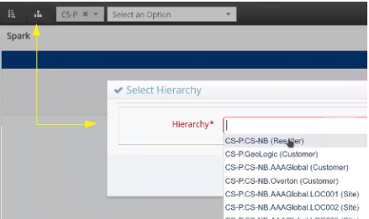
The input drop-down box can also be used for a case insensitive search with a string contained in the name of the required node, thereby filtering the drop-down list.
Since the nodes in the drop-down list also show the node hierarchy type (Provider, Reseller, Customer, Site), the list can therefore also for example be filtered case insensitively to show those for example containing “Site”.
List view hierarchy links
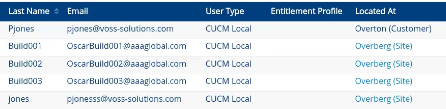
For list views, the hierarchy level to which an object belongs is indicated in the hierarchy column is called Located At. The hierarchy level name and type shows as the column hierarchy link, for example
Overton (Customer).All the entries in the list that the logged in user’s hierarchy rules allows for, will show as hyperlinks. This also applies to list views of search results.
Clicking on the hierarchy link will set the hierarchy to the selected hierarchy in the top “bread crumbs” bar and the items in the list view are filtered accordingly.
Note
The hierarchy bar is not refreshed automatically when for example Customers or Sites are deleted by another administrator user on another browser. The bar is refreshed when refreshing the browser.