Webex devices#
Overview#
You can add, update, and delete Webex devices in VOSS, including collaboration devices, ATA (analog telephone adaptor) devices, MPP (IP desk phone) devices, and Wi-Fi devices.
You can also add Webex devices in the Webex Control Hub and sync in those devices to the correct hierarchy in VOSS.
Note
MPP, ATA, and Wi-FI device types supported in the Control Hub are dynamically retrieved, along with
their respective configuration settings, from the
Control Hub via the Control Hub’s supported device API using VOSS’s device/spark/SupportedDevices
model. This model populates the drop-downs in VOSS where you can select a Control Hub supported device.
Webex devices are added by their MAC address to either a user or to a new or existing workspace. In VOSS, devices can be added and updated via the Webex Devices management page (described in this topic) or via Quick Add Webex Device. For devices added using Quick Add Webex Device, line configuration defined during provisioning is reflected on the Lines tab.
Note
Several configuration options are available for each device type. You can manually configure all these options via the Webex Devices page or auto apply configuration via Quick Add Webex Device.
Device identifiers during sync
Webex APIs may return different device identifier fields depending on device type and state, and in some cases these identifiers may be empty. VOSS handles this automatically during synchronization by deriving a stable internal identifier to ensure devices are consistently matched, synced, and managed.
Device configuration lifecycle
Device configuration, including all configured lines, is managed automatically as part of device lifecycle operations:
When a device is added, configuration and all defined lines are created and applied
When a device is updated, configuration is updated accordingly
When a device is deleted, configuration is removed
This ensures that line assignments remain consistent and prevents orphaned configuration.
Related topics
Multi-line device support#
Some Webex devices support multiple lines per device, depending on the capabilities of the selected device model. Multi-line support is available on devices that support multiple line ports or line key buttons.
Note
Some Webex device models, including Webex Voice Gateway (VG) devices, expose multi-line management based on their supported capabilities. The availability of multiple lines and the Lines tab depends on whether the selected device model supports configurable ports or line assignments.
Each line is represented as a device configuration member and mapped to a port:
Port 1 represents the primary line
Additional ports represent additional lines
Multiple lines can be assigned during provisioning (for example, using Quick Add Webex Device) or added later through the Lines tab.
In Quick Add Webex Device, additional lines are configured by selecting the Add additional lines option, which displays fields to assign an extra line during provisioning.
Note
When using Quick Add Webex Device, you can currently add only one additional line during device provisioning (that is, a maximum of two lines in total: the primary line and one additional line). To add more lines, you must first create the device and then use the Lines tab on the Webex Devices page to assign additional lines, if supported by the device model.
The number of supported lines depends on the device’s available ports or line key buttons.
When an additional line is added during provisioning, it is assigned to the next available port in order (for example, port 2 for the second line).
Each line can be associated with a user (person) or a workspace, allowing a single device to support multiple call appearances or shared line configurations.
Note
When adding additional lines, the Webex platform may reject the request if the selected user or workspace exceeds the maximum number of allowed call appearances. In such cases, Webex returns an error indicating that the maximum number of appearances has been exceeded.
Webex device configuration models#
Webex devices can use different configuration models depending on the device type and its capabilities.
Some Webex devices use a traditional, fixed configuration model, where device settings are defined using a predefined set of fields. Other Webex devices use a dynamic configuration model, where settings are supplied as key-value pairs and applied by the Webex platform at runtime.
For Webex devices that use dynamic configuration:
Not all configuration fields are shown in the user interface
Some fields are read-only or system-controlled
Available configuration options may differ between device models
Both configuration models are supported and both support multi-line device configurations.
Related topics
Device configuration and line members#
Regardless of whether a device uses legacy or dynamic configuration, line assignments are applied through the device configuration model.
Each configured line is represented as a device configuration member and includes:
The port (line position)
The associated identity (user or workspace)
The relevant line attributes (for example, number or extension)
This unified approach ensures consistent handling of line assignments across all Webex device types.
Webex device configuration settings#
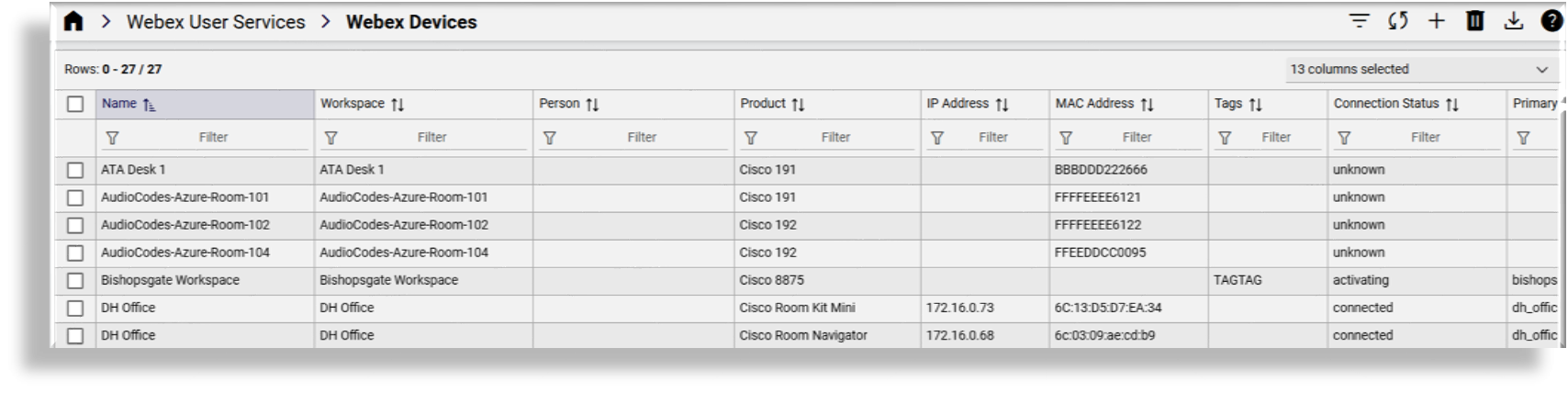
Cisco Webex devices are managed via the Webex Devices page, on the following tabs:
Device
Lines
Advanced Configuration
Note
You can toggle the toolbar Tab/Panel icon to display the page layout as either tabs or panels.
Device tab/panel#
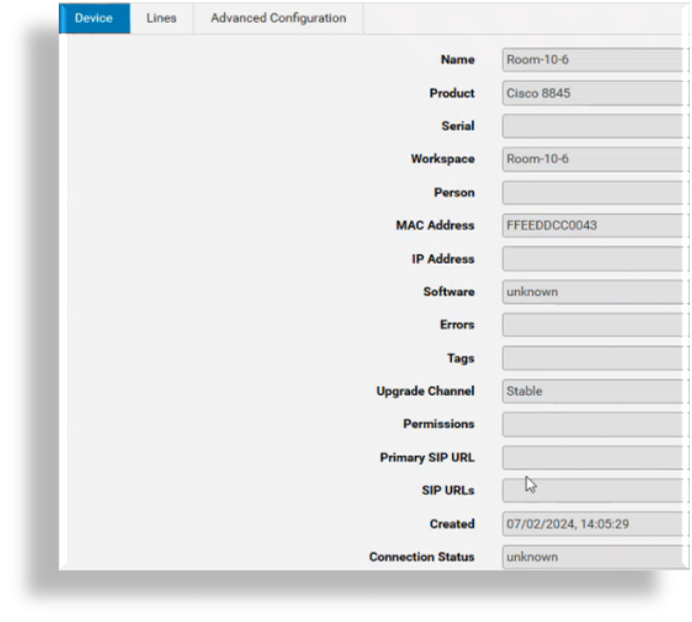
The Device tab/panel displays read-only device details, such as the MAC address (device name) for a particular device.
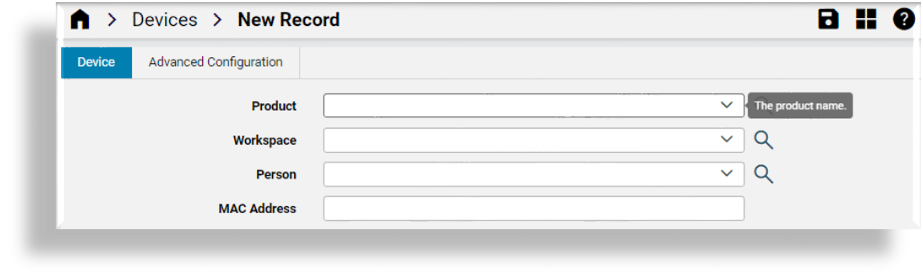
When adding a device, you’ll choose the product (device type), and define whether to associate the device with a workspace or a person. When choosing a device, configuration settings relevant to the device type become available in Advanced Configuration.
Note
A device can be associated either with a workspace or with a person (Webex user), but not with both.
A device associated with a person is defined as a personal device. The Person column in the Webex Devices summary list view displays the person ID (converted to an email address) when a person (rather than a workspace) is associated with a device.
The email address is used to identify the device and the associated user so that both can be moved to the correct hierarchy in a sync.
Lines tab/panel#
On the Lines tab/panel, you add lines to a Webex device.
Note
The Lines tab is available only for Webex device models that support configurable ports or line assignments. Devices that support a single line expose only one configurable port.
When adding a second line to an existing Webex-supported device (for example, Cisco ATA192), the line type and line weight have the following default values applied:
Line Type: PRIMARY
Line Weight: 1
Note
Default values are only auto-populated on new lines where field values are not explicitly set. This prevents provisioning transactions from failing due to no or incorrect configurations. You can change these values. Existing values on existing lines are not modified.
Line configuration behavior
Lines configured on a device are applied as part of the device configuration.
Each configured line defines:
The port (line position)
The associated user or workspace
The assigned number or extension
While Line Type and Line Weight fields may be displayed and populated with default values, line behavior is determined primarily by:
Port assignment
Device configuration members
Note
Line type does not control line behavior and is not validated during provisioning. Line assignment is determined by device configuration members and port positioning.
Line ordering and port assignment
Line ordering on a Webex device is determined by port assignment:
Port 1 is always the primary line
Additional lines are assigned to subsequent ports (for example, port 2, port 3, and so on)
When multiple lines are configured, the ordering of lines reflects their assigned ports. This determines how lines appear and behave on the device.
Note
The number of supported lines depends on the capabilities of the device model. Devices that support only a single line will expose only one configurable port.
Advanced Configuration tab/panel#
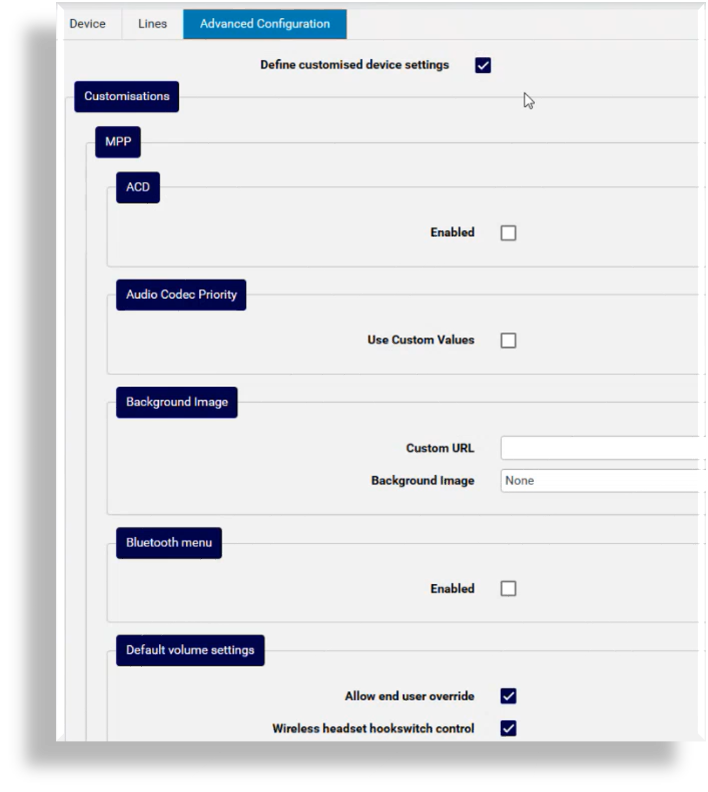
The Advanced Configuration tab/panel defines the calling parameters for a device. The available configuration settings depend on the device type, for example, MPP, ATA, or Wi-Fi device.
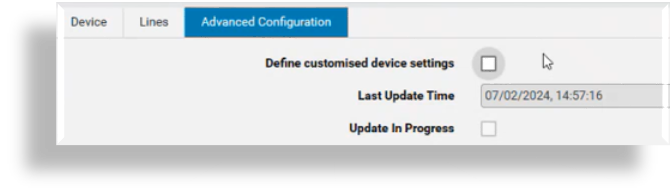
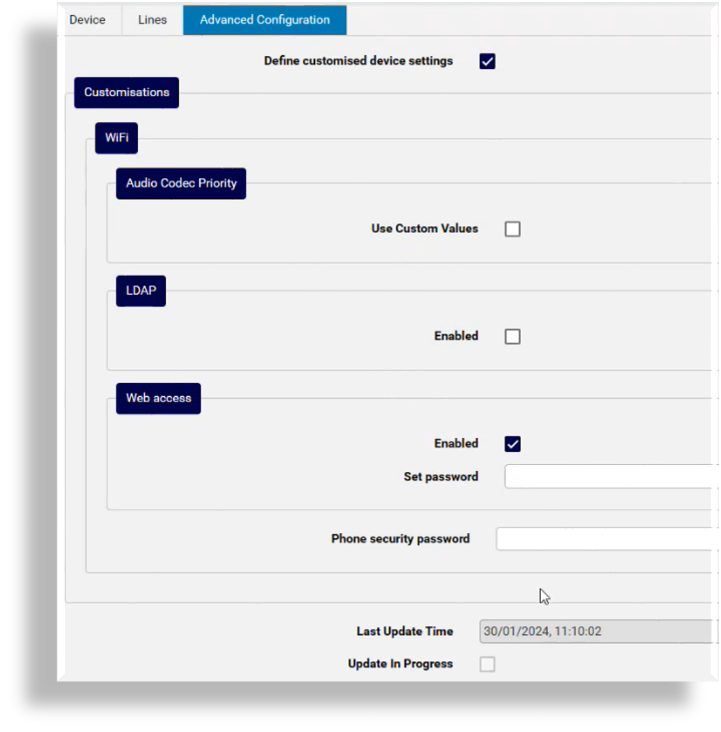
If you wish to apply custom configuration settings to the device, select Define customized device settings to display the additional custom configuration options for the device.
Note
Device-specific custom configuration settings are the same settings that may be defined on the Control Hub for the device type.
The image displays custom configuration settings for a MPP device:
Note
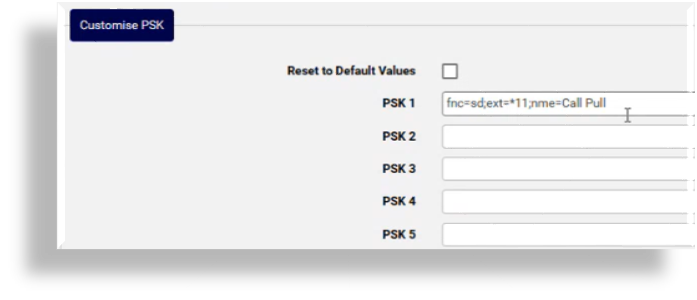
For a MPP device, default PSK (programmable soft key) settings are automatically populated from the Control Hub. All the PSK fields on the form are editable string fields and can be added to or changed, or reset to default values, if required.
For a MPP device, settings in the Customize softkey menus fields comprise default values retrieved from the Control Hub, and are semi-colon separated lists of items that will display for the softkeys. These settings are editable strings that can be customized, or reset to default values, if required.
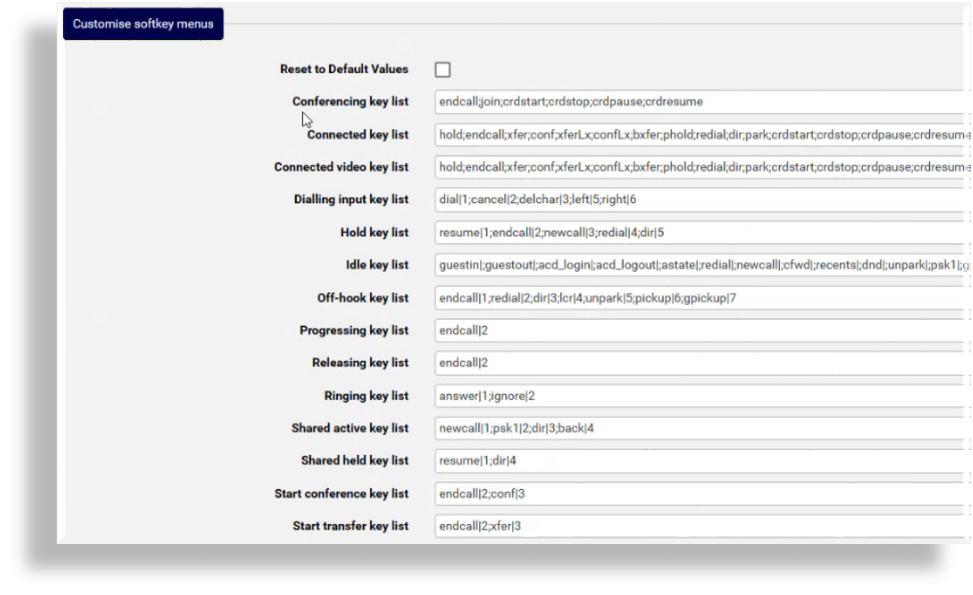
To reset values for the custom softkey menus or the PSKs, select the applicable Reset to Default Values checkbox. When saving your settings, the default values are retrieved from the Control Hub to replace any custom values.
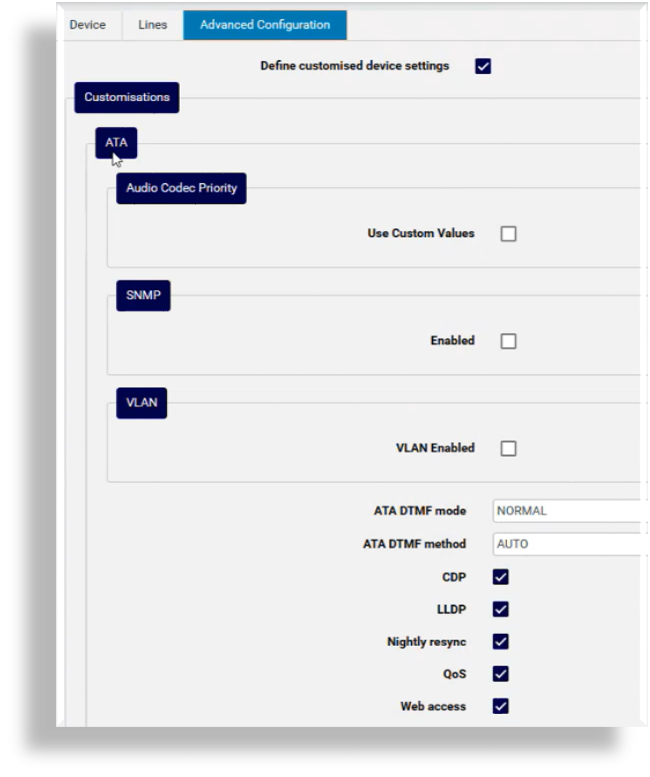
The image displays custom configuration options for an ATA device:
The image displays custom configuration options for a Wi-Fi device:
Hide custom configuration settings
To hide the custom settings and apply default settings from the Control Hub for the customer and site, deselect Define customized device settings.