Run UC overbuild#
Overview#
The Run UC Overbuild tool imports objects.
Related topics
Overbuild action#
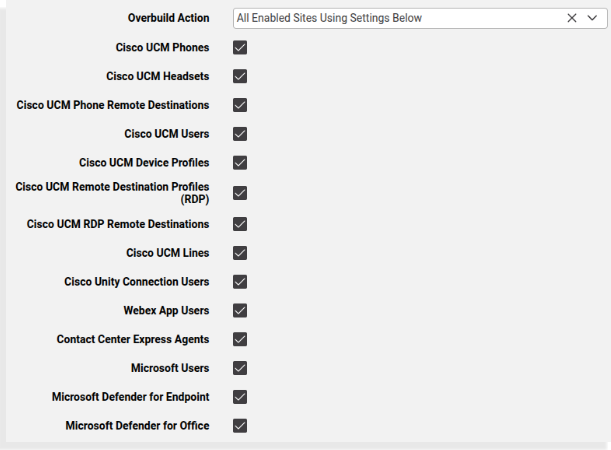
The table describes options available for Overbuild Action on the Run UC Overbuild page
Overbuild action |
Description |
|---|---|
All Enabled Sites Using Settings Below |
When Run Overbuild executes with this option, it applies to all sites and uses devices selected on the Run Overbuild page. Run Overbuild devices supersede the devices selected in Limit Move Devices. |
All Enabled Sites Using Site Defaults Doc Overbuild Settings |
|
Overbuild action |
Description |
|---|---|
Single Enabled Site Using Settings Below |
When the Run Overbuild tool executes with this option, it applies to the selected site only, and uses devices selected on the Run Overbuild page. Run Overbuild devices supersede the devices selected in Limit Move Devices. |
Available device types#
Available device types for Run UC Overbuild depend on enabled services in Global settings. For example:
Cisco CUCM
Cisco CUCX
Cisco WebEx
Cisco Webex App(Teams)
Cisco UCCX
Microsoft
Defender for Office
Defender for Endpoint
Available device types include:
Phones
Phone Remote Destinations
Users (
device/cucm/User)Device Profiles
Remote Destination Profiles (RDP)
RDP Remote Destinations
Lines (a number inventory entry is also added for all
device/cucm/Line) instances that are in the system at the customer or site level)CUC Users
Webex App Users
Pexip Users
Contact Center Agents
Microsoft Users
Microsoft Defender for Endpoint
Microsoft Defender for Office
Affected device models#
The following device models are affected by the overbuild move:
device/cuc/User
device/cuc/UserPassword
device/cuc/UserPin
device/cuc/AlternateExtension
device/cuc/ExternalServiceAccount
device/cuc/SmtpDevice
device/cuc/SmsDevice
device/cuc/PagerDevice
device/cuc/PhoneDevice
device/cuc/HtmlDevice
device/cuc/Callhandler
device/cuc/CallhandlerMenuEntry
device/cuc/CallhandlerTransferOption
device/cuc/Greeting
device/cuc/MessageHandler
device/cucm/Phone
device/cucm/User
device/cucm/DeviceProfile
device/cucm/RemoteDestinationProfile
device/cucm/RemoteDestination
device/cucm/Line
device/pexip/Conference
device/spark/User
device/uccx/Team
device/uccx/Skill
device/uccx/ResourceGroup
device/uccx/Agent
device/msexchangeonline/SafeAttachmentPolicy
device/msexchangeonline/SafeLinksPolicy
device/msexchangeonline/QuarantinePolicy
device/mssecurity/Machine
device/msgraphsecurity/Alert
device/msgraphsecurity/Incident
device/msgraph/Room
Note
In Microsoft environments, certain device models are moved based on relationships with other entities during overbuild. For example, meeting rooms (device/msgraph/Room) are associated with Microsoft users and are automatically moved to the same hierarchy level when the corresponding Microsoft user is moved.
This association is determined by matching the room email address with the user principal name (UPN).
Affected data models#
The following data models are affected when moving a user during overbuild:
data/User
Device types available for selection depend on the status of other device type check boxes. For example:
The following device types are only available if you’ve selected Phones:
Dual-Mode Remote Destinations
Users
Lines
The following device types are only available if you’ve selected Users:
Device Profiles
Remote Destination Profiles
CUC Users
Overbuild and failures#
Overbuild workflows do not stop on any transaction failures and no transaction rollback takes place on errors. For example, device instance move operations to sites continue for all selected devices. Inspect the transaction log for errors.
In the Transaction log, sub-transactions of a successful overbuild workflow show their status as “Fail” if a model (such as a User) already exists. The sub-transaction logs also show details of the duplicate model and an “ignore error code” information message.
If a number already exists and the global setting Prevent Duplicate Number is enabled, the sub-transaction to create a duplicate of an existing number fails.
Related topics