Manage meeting rooms and devices#
Overview#
The Meeting Rooms dashboards provide a unified view of collaboration-enabled meeting rooms across the organization. They support rooms equipped with in-room devices (primarily Cisco collaboration endpoints) registered to either Cisco Webex or Microsoft Teams.
The dashboards enable administrators to:
Monitor device health and performance, including registration status, software versions, health scores, and audio/video quality metrics
Gain visibility into room usage, using booking data from Webex, Microsoft Exchange, and integrated calendar systems
Analyze occupancy and capacity, where supported, by comparing room capacity with actual attendance
Identify utilization patterns, such as under-used rooms, overcrowded spaces, no-show meetings, or ad-hoc usage
Support workspace and real-estate planning, based on real-world meeting room behavior rather than bookings alone
Data is collected from multiple platforms and converted into a common format so it can be reported consistently, even in mixed-vendor environments. Device, workspace, and user management capabilities are available in a single interface, with role-based access ensuring administrators see only the rooms within their responsibility.
Meeting Rooms dashboards#
Management Actions dashboard#
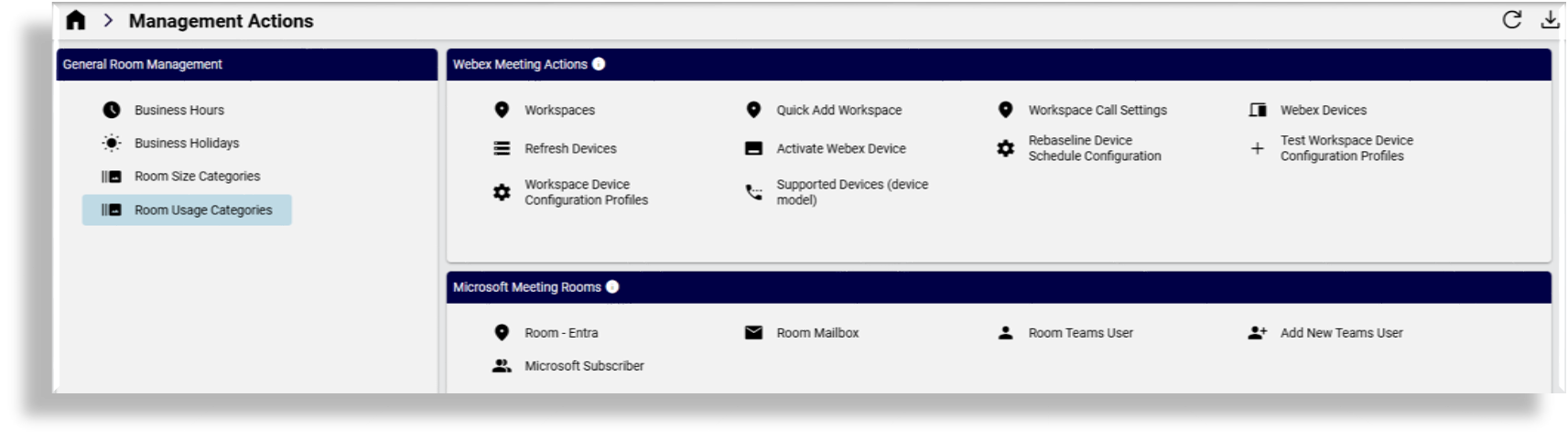
The Management Actions dashboard provides a consolidated view of configuration and operational actions. The dashboard is organized into three sections:
General Room Management: For managing room settings that apply to all rooms, regardless of UC vendor, such as business hours and holidays, room size and usage categories, and room categorization policies.
Microsoft Meeting Rooms: For managing Microsoft Teams Rooms (MTR), including tenant-level settings and configurations.
Webex Meeting Rooms: For managing Webex room workspaces (places) and devices, including organization-level settings, workspace configurations, and device management.
Related topics
Microsoft meeting rooms
(Room Mailbox) Microsoft Exchange
(Add New Teams User) Onboard user (Microsoft)
(Room Teams User) Manage users
Webex meeting actions
(Workspaces / Quick Add Workspace) Webex Workspaces
(Refresh Devices) Reset devices to baseline
(Workspace Device Configuration Profiles) Workspace Device Configuration Profiles
(Rebaseline Device Schedule Configuration) Configuration templates
Estate Overview dashboard#
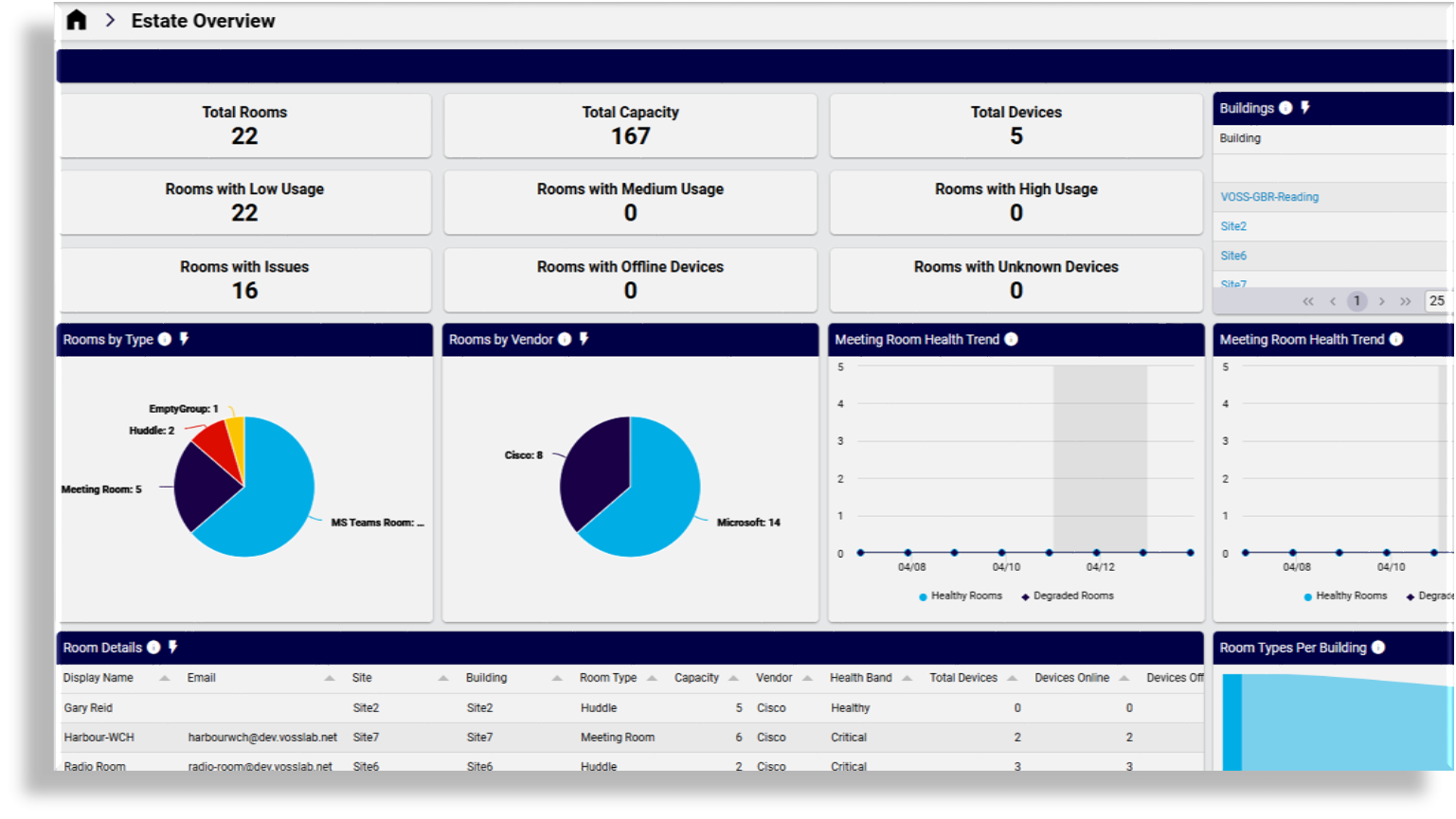
The Estate Overview dashboard displays a high level summary of the entire meeting room estate.
Total rooms, capacity, and devices: Counters with time-based totals for rooms, capacity, devices, rooms by usage (low, medium, high), rooms with issues, offline devices, and unknown devices
A table listing buildings with rooms and the ability to drill-down into rooms by building
Table format list of room details, such as location (including floor location in buildings), capacity, devices, health, and utilization
Vendor and room type distribution: Charts for rooms by type and vendor
Overall health trend charts showing meeting room health trends (healthy vs degraded rooms over time to spot patterns and improvement), and the ability to compare health over time
Device Fleet Status dashboard#
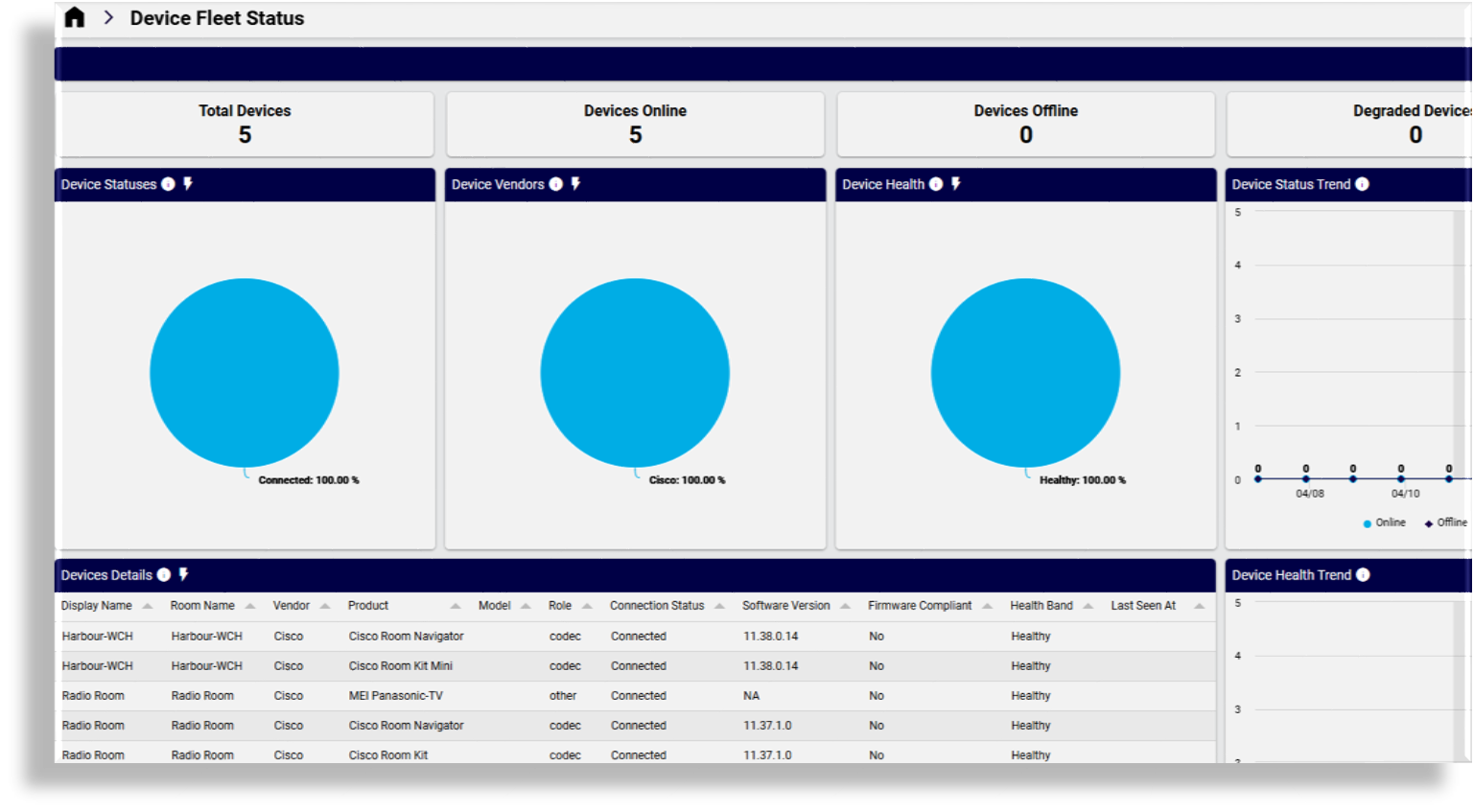
The Device Fleet Status dashboard provides a device-centric view across the estate:
Total devices
Online vs offline status
Vendor breakdown
Health and compliance trends
Identification of outdated software versions: Also includes latest supported versions and release details (Webex Room OS, Microsoft Windows, Microsoft Android), device firmware compliance status, trends over time, and the distribution of devices by installed software/firmware versions
Related topics
Utilization & Usage dashboard#
The Utilization & Usage dashboard provides a view of organization-wide usage insights, including:
Total meeting hours, number of meetings, and participant counts
Average meeting hours, no show rate
Room listing showing room types, sizes, number of rooms per vendor, number of meeting hours by day of the week
Average meeting duration
Trends for room meeting hours and capacity
Meeting room utilization and health
Quality Overview dashboard#
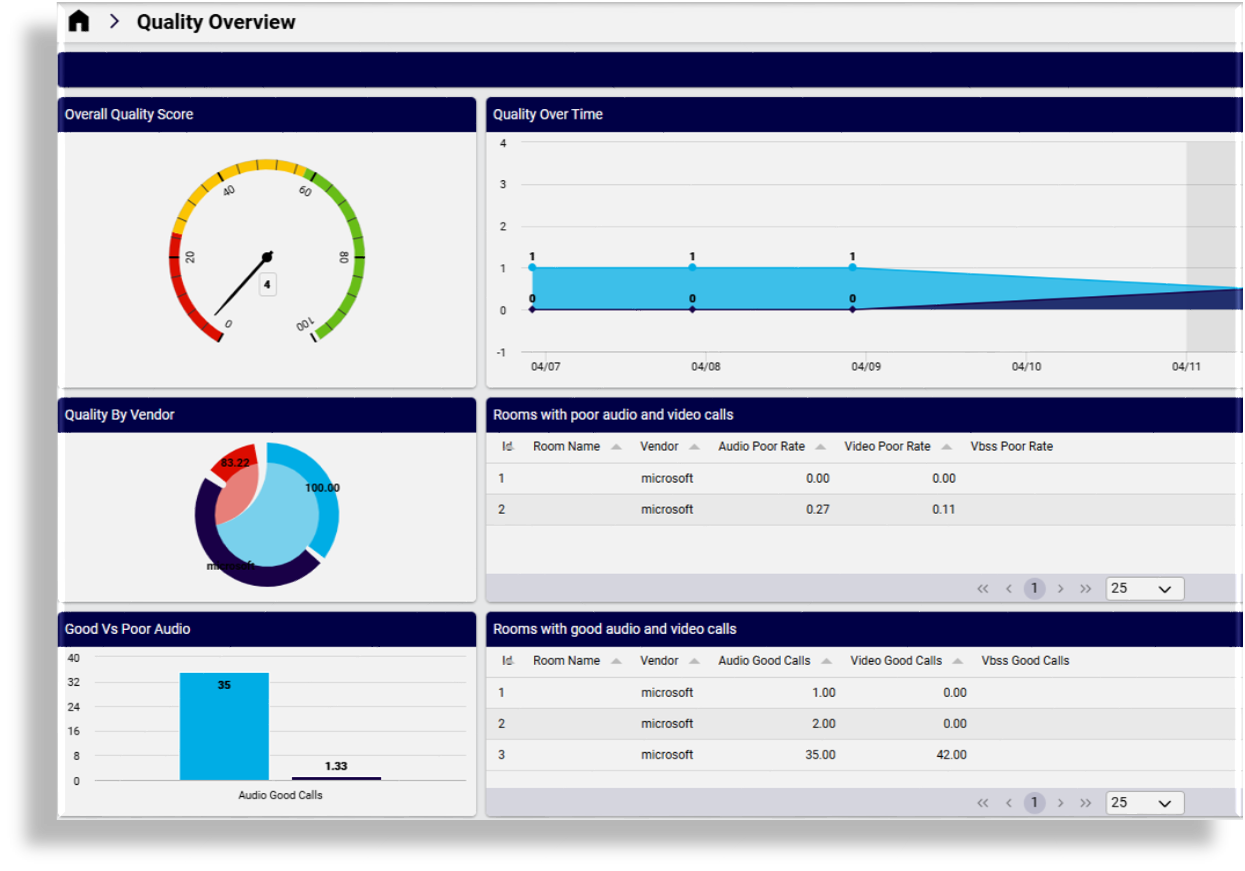
The Quality Overview dashboard provides CDR-based quality analytics over time:
Audio, video, and screen share quality ratings
Overall quality score and quality split by vendor
Day by day trend analysis (quality over time, KPI details, hotspot rooms)
Identification of recurring quality patterns (quality KPIs, poor meeting rate, average quality score, media failures, packet loss incidents)
Room Overview dashboard#
The Room Overview dashboard displays a list of meeting rooms, each with details such as email and phone number, SIP address, vendor, calendar type, calling plan type, site, building, floor label, floor number, latitude and longitude, capacity, and size category details.
You can select a meeting room in the list to view further details for that meeting room. The detail view displays counters and charts for devices, calls and meetings, room health, health trends, and quality trends.
On the Room Overview dashboard you can search and filter all meeting rooms, then drill down into individual room details.
For each room, you can view:
Room capacity
Devices and peripherals
Call and meeting counts
Quality metrics
Poor meeting rate
No show rate
Room level analytics include:
Usage vs. bookings: Time booked compared with actual usage
Quality trends: Audio and video quality over time
Occupancy trends: Percentage of room capacity used
Booking analysis: Booked vs used, booked no shows, and ad hoc usage
Occupancy metrics: Number of people detected in the room
Metrics are collected and refreshed hourly.
Room Device Overview dashboard#
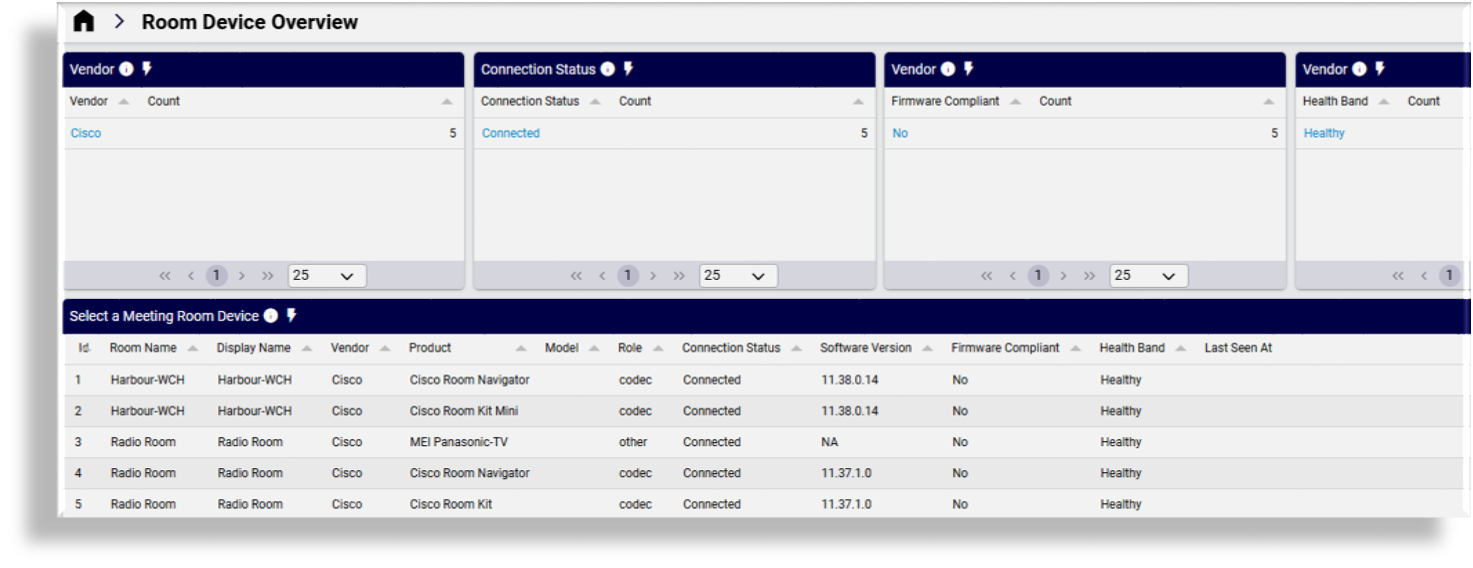
On the Room Device Overview dashboard you can drill into individual devices within a room to view:
Device lifecycle status
Health scores
Software and firmware versions
Software currency and compliance
Meeting counts per device
The Room Device Overview dashboard displays a list of meeting room devices, each with details such as room and display name, vendor, product, model, role, connection status, software version, a flag to indicate firmware version compliance, health band (e.g., fair, poor), and last seen.
Select a room device in the list to view further details for that device. The detail view displays a dial showing the status of device health and software age, plus an overview summary of the device details.
Related topics
View / update device firmware versions#
The Meeting Rooms Management feature supports the ability to view reports on collaboration device firmware versions and to update outdated firmware versions for Windows, Android, and Webex RoomOS devices directly from within the Meeting Rooms management list views and dashboards. You will be able to:
View an inventory of meeting rooms/devices showing current firmware versions to compare existing device versions against the latest versions, and highlighting non-compliant versions
Fetch the latest versions for specific device types
Prerequisites
Enable the Meeting Rooms Management solution at sys.hcs (system-level hierarchy) in Global Settings
Configure a schedule to run daily at the sys.hcs (system-level hierarchy) to retrieve firmware version details via the VOSS platform API directly from the relevant UC vendor’s published firmware version release details
Configure a global connection for the device firmware API
Related topics
Manage business hours for meeting rooms#
This procedure configures Meeting Room business hours.
Ensure Meeting Rooms is enabled in Global Settings.
Go to Business Hours. The list view displays existing configurations for meeting room business hours.
Click the toolbar Plus icon (+) to add a new business hours configuration for meeting rooms.
On the Business Hours new record page, configure the following:
Business Hours ID: Fill out a unique identifier (surrogate key).
Customer ID: (Mandatory). Fill out a tenant/customer unique identifier (UUID).
Country Code: Fill out the country code. (ISO-3166 alpha-2; null = global default.)
Region ID: Fill out optional region scope UUID.
Site ID: Fill out optional site scope UUID.
Title: Fill out a display name for this instance, for example, “Standard 8-6”.
Description. Optional description for this instance.
Days of Week: Select relevant days of the week (0=Sun, 6=Sat).
Start Local Time: (Mandatory). Fill out the local start time. Format should be HH:mm[:ss].
End Local Time: (Mandatory). Fill out local end time. Format should be HH:mm[:ss]. End local time may be earlier than start local time to represent overnight span.
Note
Times are local to the site’s time zone (from data_basesitedat.time_zone). If no record is applied, it is considered 24x7.
Effective Start Date / Effective End Date: Fill out the first day in effect and the last day in effect.
Is Active: Define whether this instance of business hours is currently active.
Priority: Priority value. Default is 100. A lower priority value is preferred when multiple instances match.
Created At: The UTC date-time the record was created.
Updated At: The UTC date-time the record was updated.
Click Save.