
Navigating Batch Views
Listing Batch Views
A Batch View is a structured collection of filters, column layouts and column orderings on an underlying data table (also known as a Role).
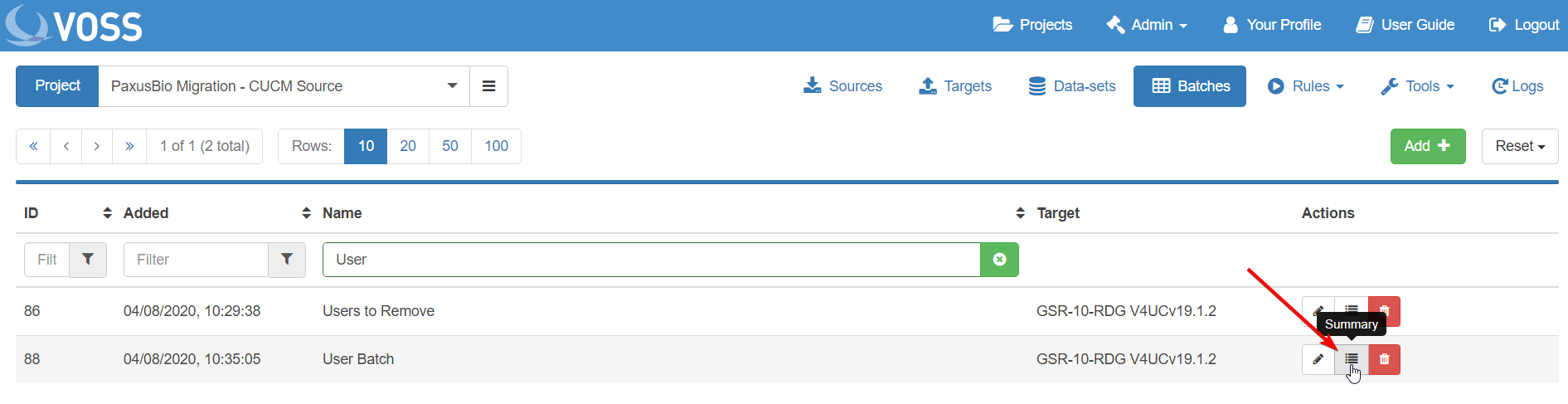
To see a summary of Batch Views for a Batch, select the Summary button on the Batches tab:
The image below shows the modal which appears and the options which can be performed:
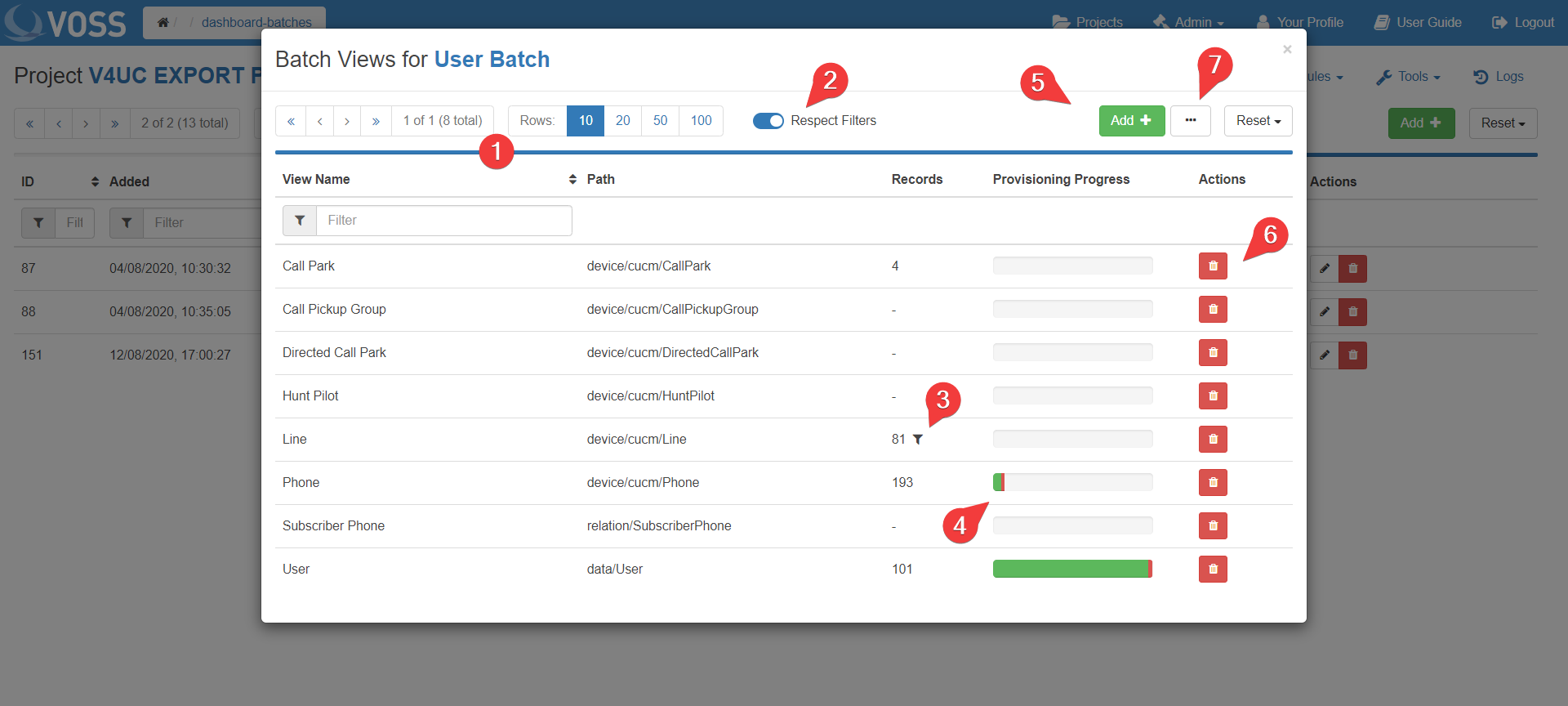
Displayed for each Batch View is the View Name, its originating Role path, the total number of data records, its provisioning progress (discussed below) and any extra actions available. Pagination and filtering are available.
The Records and Provisioning Progress columns will respect View filters if Respect Filters is toggled on, otherwise they will present results regardless of the View filters set (default). Upon toggling, you will see the cells be replaced by a cogwheel as the new counts are loaded from the server.
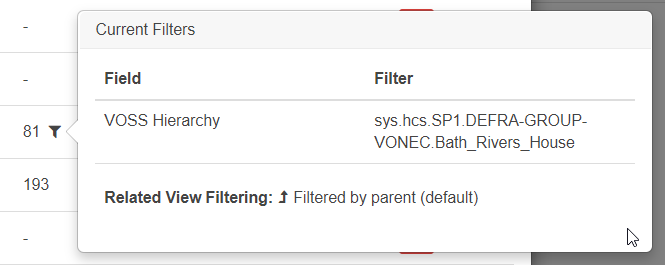
If Respect Filters is toggled on, a filter icon will appear next to the record count if the View has a filter applied. Hover over the icon to see a summary of the filters applied:
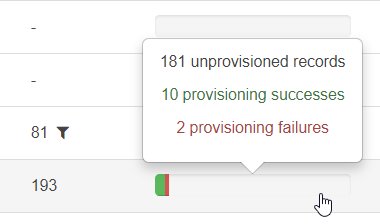
The provisioning progress of a Batch View is a progress bar summarising the number of records provisioned to the target server, with portions displayed for successful, failed and unprovisioned records. Hover over the progress bar for a more detailed count of each portion:
Additional Batch Views can be added by clicking on the Add button.
Batch Views can be removed by clicking on the red dustbin icon.
More options which can be performed on the Batch as a whole are displayed by clicking this button. Each presented option is documented in its own section.
Clicking on a row from the listed Views will navigate to the View’s data.
Adding a Batch View
To add a Batch View:
Select the desired Batch from the Batches tab to open a list of Batch Views.
Click on the Add button to display the New Batch View modal.
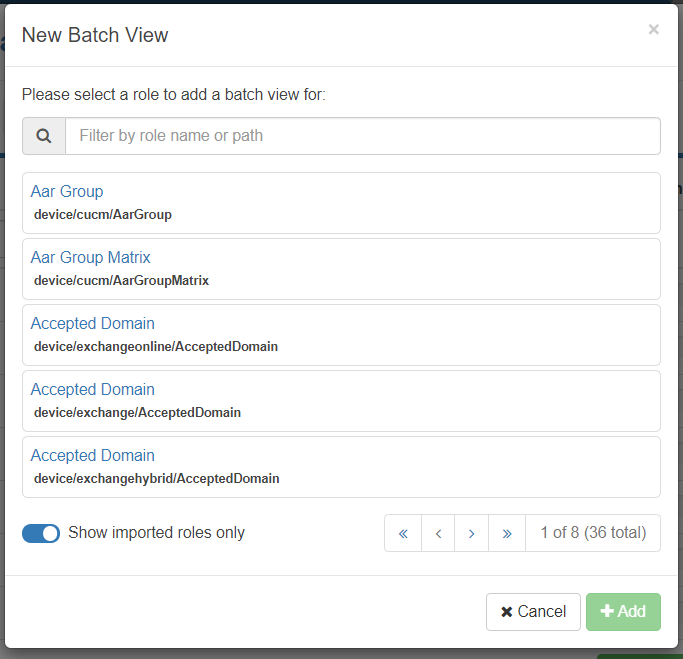
Presented is a list of imported Roles for which a Batch View can be added to access the underyling data. To add a View for a Role which was never imported, toggle the Show imported roles only button - this may be needed if uploading a VOSS Migrate bulk loader containing work sheets for Roles that were never imported.
Filtering by Role name or path is available.
Click on the desired Role and then click Add.
Note
For Roles with a large amount of fields, it may take a while for the View to be added.
Deleting a Batch View
To delete a Batch View:
Select the desired Batch from the Batches tab to open a list of Batch Views.
Click on the red dustbin icon next to the View to delete and then click Yes.